
Run the Microsoft Entra Zero Trust Assessment
- Davide Cenedese
- Microsoft 365 , Entra ID
- November 24, 2025
Table of Contents
Microsoft Entra’s Zero Trust Assessment is a practical tool designed to help organizations strengthen their security posture. By guiding teams through a comprehensive evaluation of identities, devices, and applications, it simplifies the process of adopting Zero Trust principles, enabling proactive threat protection and streamlined compliance in today’s dynamic digital environment.
Use Case
In this article, we explore the newly released Microsoft Entra Zero Trust Assessment tool. While there is no shortage of documentation, best practices, and configuration guidelines, navigating and applying them consistently can be a challenge for IT professionals. The Zero Trust Assessment addresses this gap by providing an official, automated tool that scans your cloud identity platform and offers actionable recommendations to help you align configurations with Zero Trust principles and Microsoft’s own best practices.
Prerequisites
To use the tool, you’ll need PowerShell 7 installed on the device where you plan to run the scan.
The Zero Trust Assessment requires the Microsoft.Graph and Az modules to be installed on your system. If they’re not already present, you can get them by running the following cmdlets:
Install-Module -Name Microsoft.Graph
Install-Module -Name Az
Additionally, you must sign in with a user account that has at least Global Reader access to your Microsoft Entra tenant. When running the tool for the first time, a user with the necessary permissions will need to grant consent to the tool in Entra ID, for the required access.
How to Use the Microsoft Entra Zero Trust Assessment Tool
Installation
The installation is straightforward, it just involves installing a PowerShell module:
Install-Module ZeroTrustAssessment
Expect the installation to take a few minutes, as the module is quite large.
Authentication & Permissions
Once the module is installed, the next step is to connect to the Microsoft Entra tenant where you want to run the assessment:
Connect-ZtAssessment
These cmdlets invoke Connect-MgGraph and Connect-AzAccount, so you’ll see two sign-in windows open in your browser, one for Microsoft Graph and one for Azure. The first time you connect to Microsoft Graph, you’ll be prompted to grant the necessary permission consent for the Microsoft Graph Command Line Tools enterprise app.
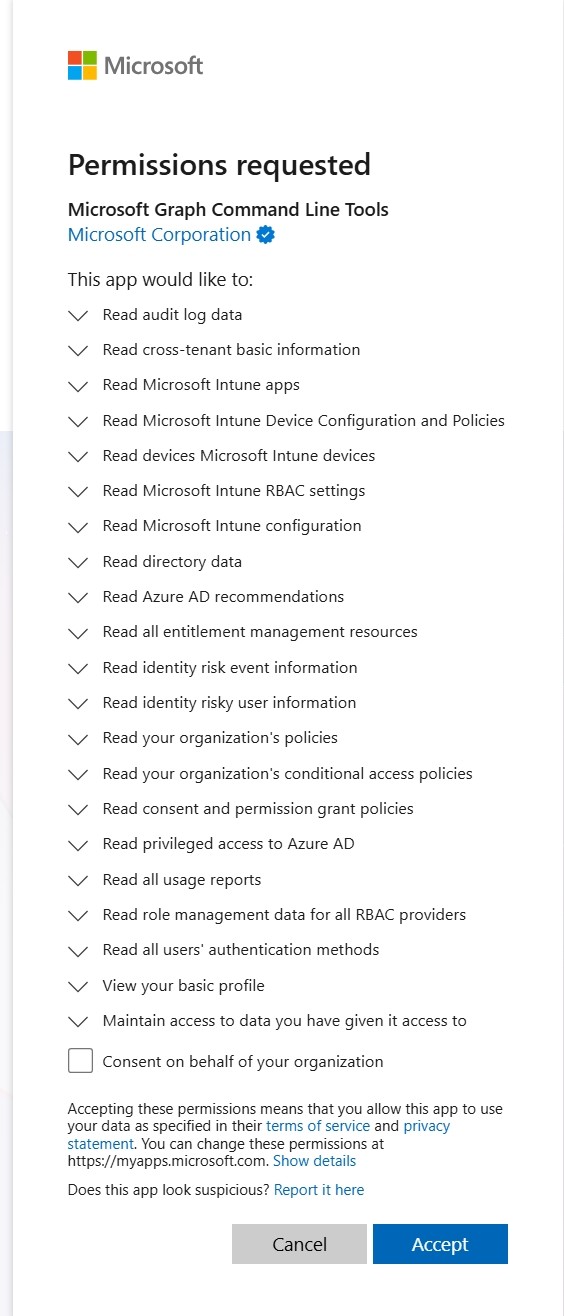
After signing in through both prompts, you’ll see the message “Authentication complete. You can return to the application. Feel free to close this browser tab.”
At this point, you can switch back to your PowerShell window to continue with the assessment.
Running the Assessment
With a simple PowerShell cmdlet, you can initiate the assessment and start evaluating the security posture of your tenant:
Invoke-ZtAssessment -Path /local/path/for/saving/results
The tool then automatically performs a comprehensive set of security checks on your tenant, all without requiring any further input or intervention from you.
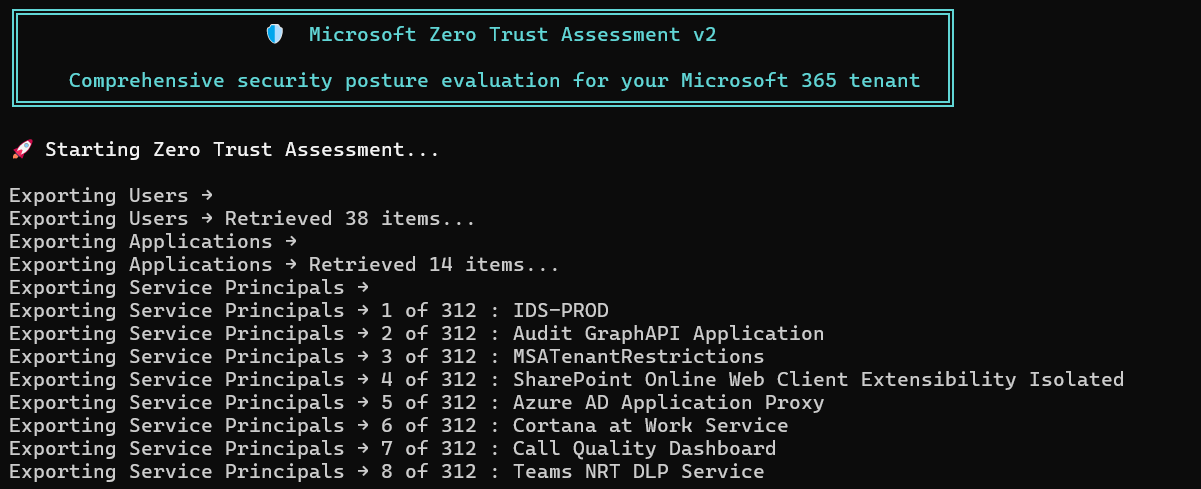
Info
The Microsoft Entra Zero Trust Assessment tool is read-only. It does not make any changes to your tenant or its configuration. Its purpose is solely to collect information and provide security recommendations.
Interpreting the Results
The time required for the assessment to complete depends on the size of your tenant. For smaller environments, the process may take just a few minutes, while larger tenants could require several hours (or even days) to finish.
Once the assessment is complete, the script will automatically open the HTML report in your browser.
The report is organized into three main sections, each providing a detailed overview of different aspects of your tenant’s security posture, which will be covered in the following sections.
Overview
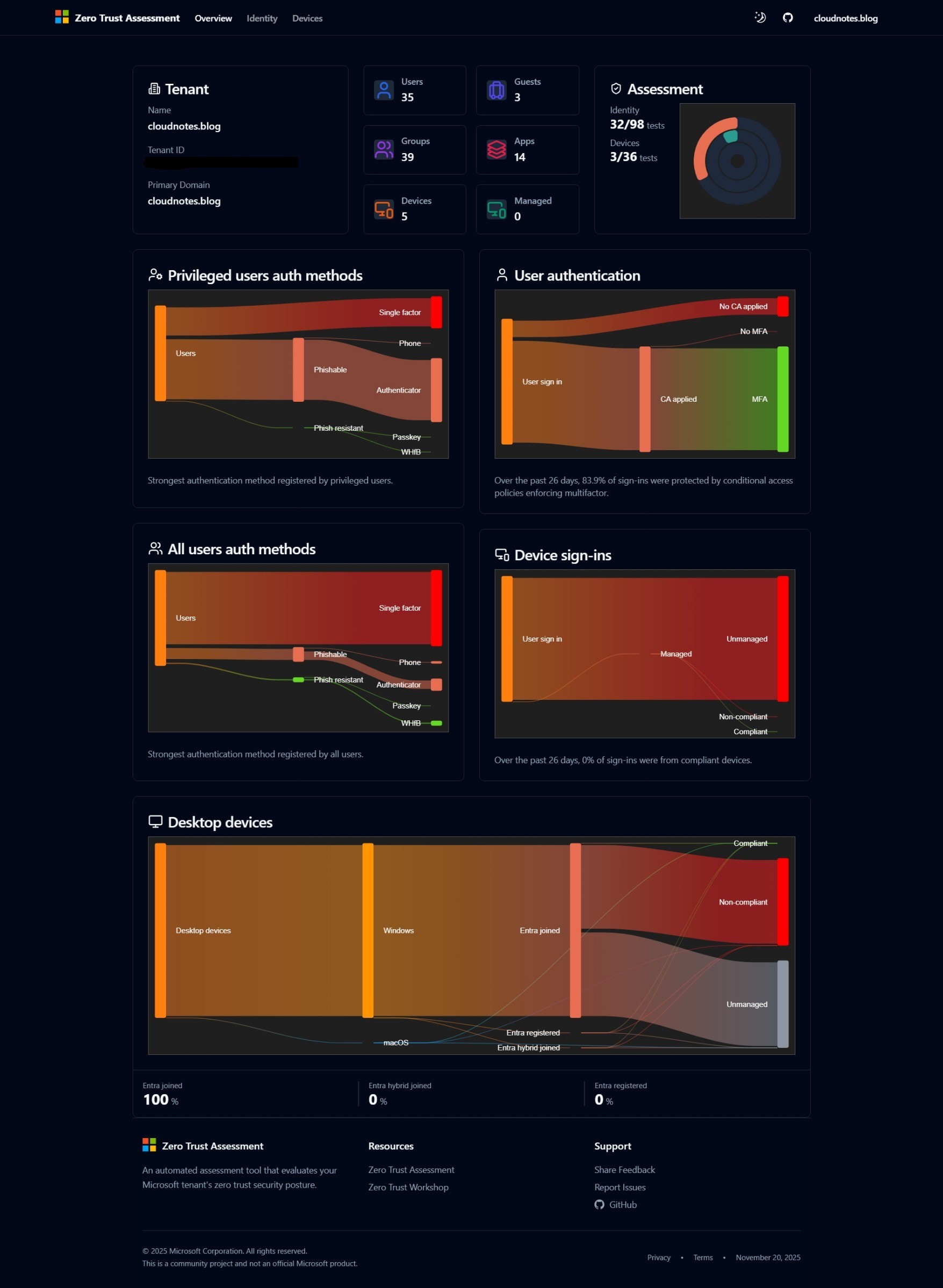
This page gives a high-level snapshot of your tenant’s identity and device security posture. It visualizes key authentication and device compliance metrics, helping you quickly identify strengths and gaps in your Zero Trust security implementation.
Tenant Summary
Shows basic information like counts of member users, guests, groups, apps, managed and total devices.
Assessment Status
Displays the overall progress of the assessment, showing how many tests have been completed in the Identity and Devices categories. It provides a quick visual summary of the coverage and results for each area, helping you understand the scope and effectiveness of your current security posture at a glance.
Authentication Methods
- Privileged Users Auth Methods:
- Sankey diagram shows authentication methods used by privileged users, distinguishing between single-factor, phone-based, authenticator, and advanced phishing-resistant options like passkey or FIDO2.
- All Users Auth Methods:
- Similar diagram showing the breakdown for all users in the tenant.
User Authentication
- Analyzes recent user sign-ins (past 30 days for Entra ID Premium P1 and P2 tenants, past 7 days for Entra ID Free tenants):
- Highlights whether Conditional Access and Multi-Factor Authentication policies were applied.
- Indicates the percentage of sign-ins that were protected by policies enforcing MFA.
Device Sign-ins
- Monitors sign-ins based on device compliance and management:
- Reports what percentage of sign-ins were from compliant or managed devices.
Desktop Devices Status
- Displays device enrollment status and compliance:
- Breaks down desktop devices by platform (Windows, macOS), join status (Entra-joined, hybrid-joined, registered), and compliance.
Identity
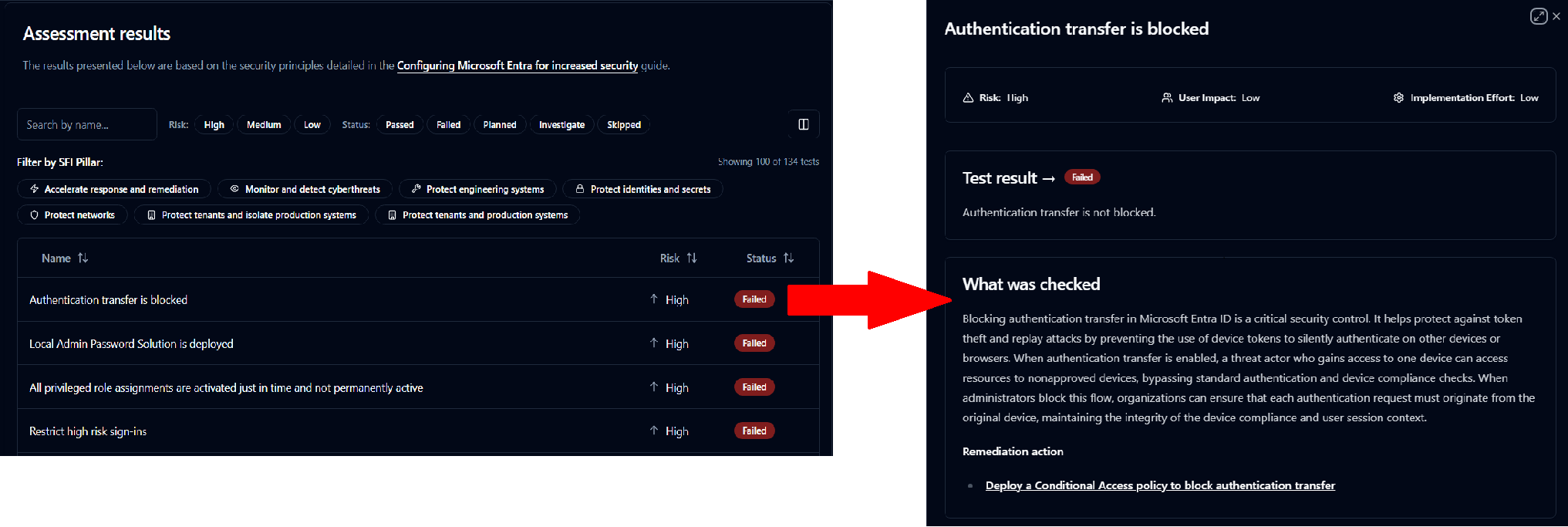
The Identity section provides a detailed list of all identity-related tests performed by the tool. Each test result is shown with its associated risk level and status, making it easy to identify areas requiring attention.
For every test, you can view further details, including an explanation of what was checked, the associated risk and user impact, and recommended remediation actions to address any issues. This structured overview helps administrators quickly review their tenant’s security posture and prioritize necessary improvements.
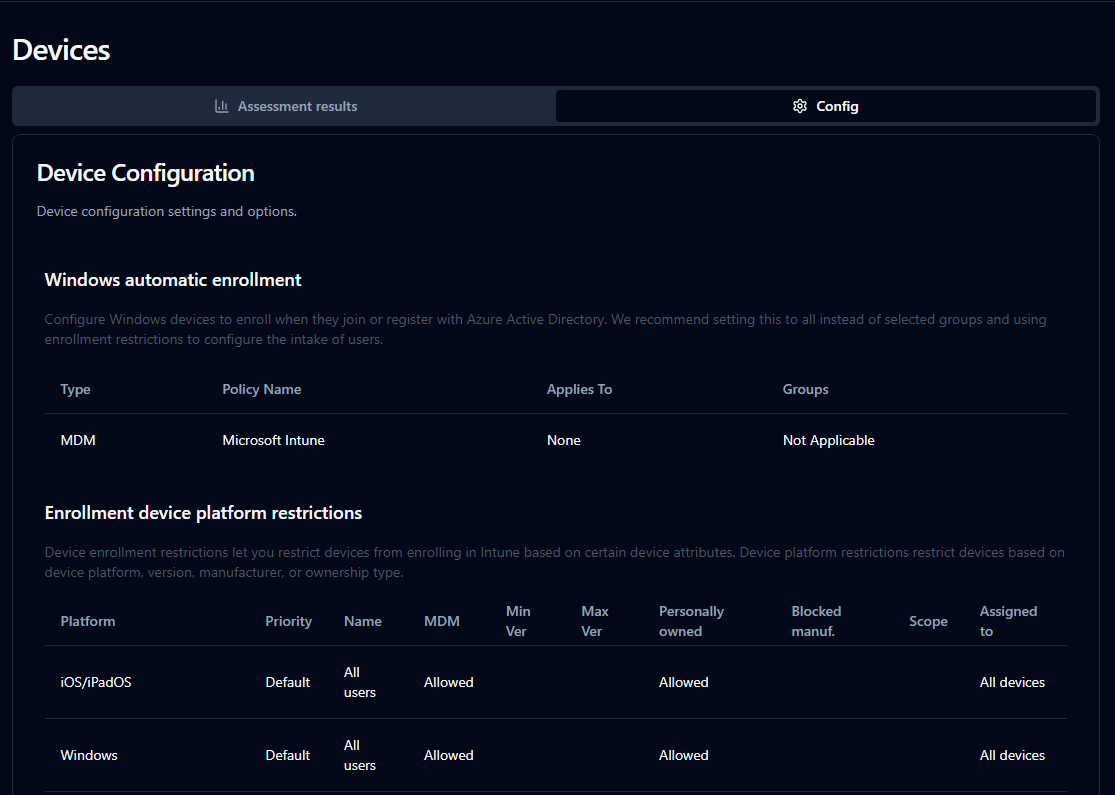
Devices
Here, the report is divided into two sub-sections:
- Assessment results: This area summarizes the results of configuration checks for devices, similar to the Identity section but focused specifically on device security posture. It highlights which tests have passed or failed, along with their associated risk levels.
- Config: This section provides a breakdown of the key device configuration policies currently applied in Intune, giving a detailed view of how devices are set up and managed within the tenant.
Conclusion
The Microsoft Entra Zero Trust Assessment tool provides an automated way to understand and improve the security posture of your organization’s cloud environment. By regularly using the assessment and following its recommendations, organizations can strengthen their defenses, align with Zero Trust principles, and support ongoing compliance and security goals.