
Active Directory expired accounts and Entra Connect
- Davide Cenedese
- Microsoft 365 , Entra ID , Active directory
- January 13, 2026
Table of Contents
In our previous article, we explained how to make Entra Connect honor the “Force password change at next logon” setting in Active Directory. This time, we’ll focus on managing expired AD accounts that are also synced to Entra ID, addressing what happens and how to ensure proper access control.
Use Case
In hybrid environments where Active Directory Domain Services remains the source of authority, it’s common to use the account expiration feature to define when a user’s access to domain resources should end.
However, when these accounts are also synchronized to Microsoft 365, it’s important to ensure consistent behavior across platforms, and specifically, that expired users are prevented from signing in to Microsoft 365 as well as on-premises resources.
In this article, we’ll cover how Entra Connect Sync and Entra Cloud Sync handle account expirations by default, and how you can configure your cloud environment to mirror on-premises behavior for expired accounts.
What is account expiration in Active Directory?
Account expiration in Active Directory is a feature that allows administrators to set a specific date and time after which a user account becomes inactive. Once the expiration date is reached, the account is automatically prevented from logging in or accessing domain resources.
This is often used for temporary employees, contractors, or accounts with a known end date, providing an automated way to restrict access without manual intervention.
The Active Directory schema includes an attribute called accountExpires, which is set to 9223372036854775807 by default, meaning the account never expires. However, if an expiration date is set for the user and then later removed, the accountExpires attribute does not revert back to 9223372036854775807. Instead, it is set to 0, which also indicates that the account never expires. You can configure this attribute to enable account expiration as needed.
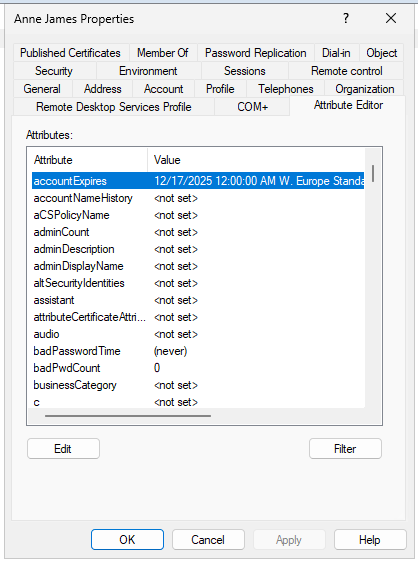
For user accounts, simply open the user’s properties, navigate to the Account tab, and set the desired expiration date. Once this date is reached, the user’s access will be automatically disabled.
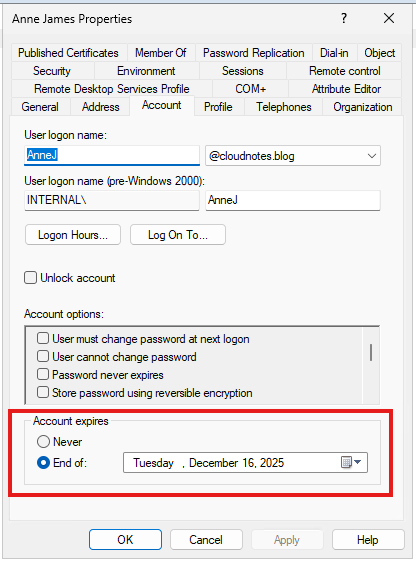
As shown in the previous screenshots, setting the account expiration date to December 16 updates the accountExpires attribute to December 17 at 12:00 AM. This means the account remains active throughout December 16 and will be disabled at midnight, starting December 17. In other words, the user is able to log in until the end of the specified expiration day, with access revoked at the beginning of the following day.
Note
When an account reaches its expiration date, it does not appear as disabled in Active Directory. The account remains enabled, but login attempts are denied once the expiration time is reached.

The accountExpires attribute is available not only for user accounts but also for computer objects.
While administrators most often use expiration for user accounts, it can also be set for computers in particular circumstances. For instance, applying an expiration date to a computer account is helpful for temporary devices such as test machines or equipment used for short-term projects.
Once the expiration date is reached, the computer account loses domain access, meaning it can no longer authenticate to domain resources or be used where permissions depend on authenticated computers or groups that contain the computer object. However, this does not prevent users from logging into that computer.
What happens by default in Entra Connect
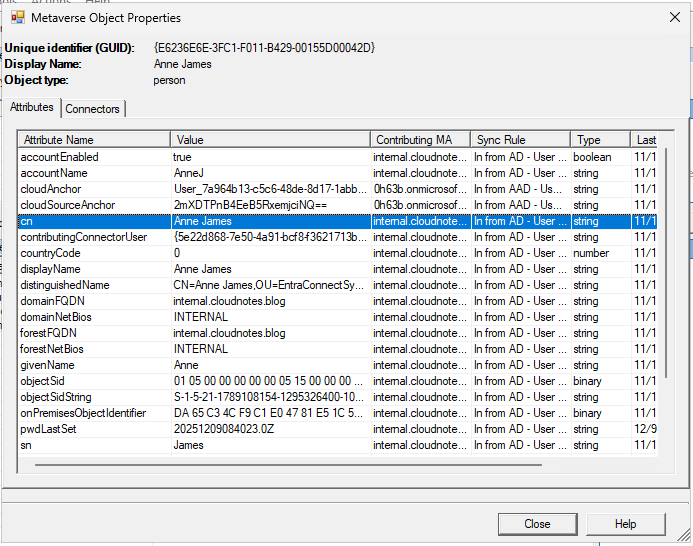
In both Entra Connect Sync and Entra Cloud Sync, the accountExpires is not synced by default. We can verify this by opening the Synchronization Rules Editor in Entra Connect Sync and performing a Metaverse search to see which attributes are synced for a user with an expiration date set. This will show which attributes are actually synced and reveal that accountExpires is not among them.
Solutions and pitfalls for managing expired accounts
Since Entra ID does not implement native account expiration logic, simply synchronizing the accountExpires attribute and mapping it to an attribute in Entra ID is ineffective. This approach will not impact whether a user can sign in to Microsoft 365 as the synchronized expiration information alone does not automatically restrict access in the cloud environment.
Recommended approaches
- Automate account disabling in AD DS: implement a script that regularly checks for expired accounts in Active Directory and disables them. This ensures that Entra Connect synchronizes the disabled status to Entra ID, effectively blocking both on-premises and cloud logins for expired users.
- Use Conditional Access policies: configure a Conditional Access policy in Entra ID that evaluates a custom attribute synced from Active Directory, such as a flag indicating account expiration. By updating this attribute through automation in AD DS and syncing it to Entra ID, Conditional Access can then block access for users whose accounts are expired according to the value of that attribute.
- Switch to Pass-Through Authentication if requirements demand: only if your organization has strict requirements to tightly couple cloud logins to the status of on-premises accounts, consider migrating from Password Hash Sync to Pass-Through Authentication. This method checks credentials directly against AD during sign-in, ensuring access is denied immediately when an account is disabled or expired in AD DS.
Discouraged practices
Any approach that disrupts the consistency between your on-premises Active Directory and Entra ID account states should be avoided. Maintaining a unified identity system is essential for both security and user experience.
For example, automatically disabling accounts only in Entra ID, while leaving them active but expired in AD DS, creates a mismatch across environments. This inconsistency can lead to confusion, operational complexity, and potential security risks. Always ensure actions such as account disabling or expiration are applied in Active Directory, so changes are consistently reflected in both your local and cloud directories.
Additionally, I personally suggest not configuring Entra Connect to stop syncing expired accounts. Doing so causes those user accounts to be placed in a soft-deleted state in Entra ID, which can have unintended consequences, such as users no longer being able to receive emails.
Option 1: Automate account disabling in AD DS
With this approach, we regularly check all AD accounts to determine if any have reached their expiration date. For accounts that have expired, a script automatically disables them in Active Directory, ensuring that the disabled status is synchronized to Entra ID.
To do this we need to set up a scheduled task on domain controllers to regularly check for expired accounts and disable them. Alternatively, if domain controllers are connected to Azure Arc, you can use an Azure Function App or Logic App to perform the same check and disable expired accounts from the cloud.
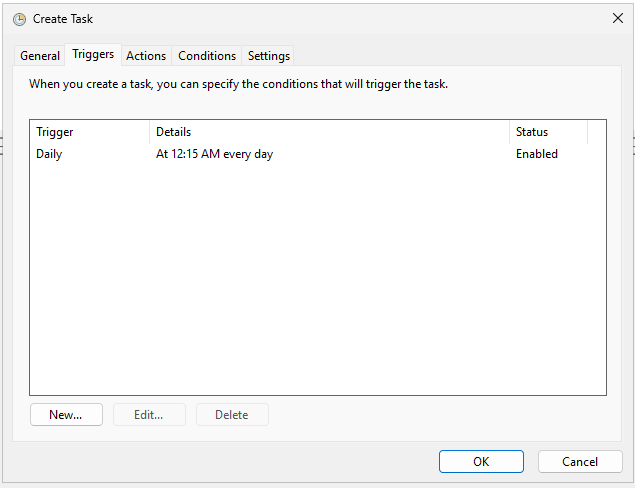
We will walk through how to monitor for expired accounts using a PowerShell script executed by a scheduled task. Because account expiration in Active Directory takes effect at 12:00 AM on the day after the specified expiration date (as discussed in the section What is account expiration in Active Directory?), we will schedule this task to run daily at 12:15 AM.
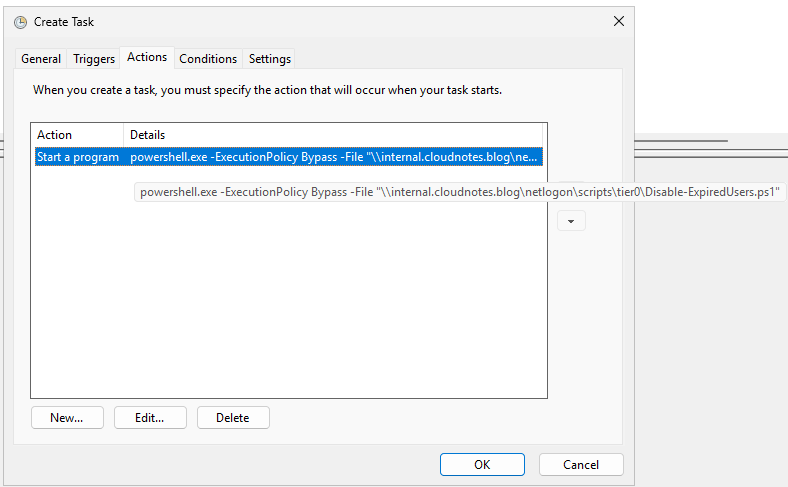
Before scheduling the task, we first need our PowerShell script. The following sample script retrieves all user objects in the directory and checks each account’s expiration date. If an account has expired but is still enabled, the script will disable it.
<#
.SYNOPSIS
    Disables expired Active Directory user accounts.

.DESCRIPTION
    Checks all user accounts in Active Directory and disables those that are expired but still enabled.

.EXAMPLE
    .\Disable-ExpiredAccounts.ps1

    Runs the script and disables any expired user accounts that are still enabled in the Active Directory domain.

.NOTES
    Author: Davide Cenedese
    License: GNU GPL v3.0 or later
    This program is free software: you can redistribute it and/or modify
    it under the terms of the GNU General Public License as published by
    the Free Software Foundation, either version 3 of the License, or
    (at your option) any later version.
    See <https://www.gnu.org/licenses/gpl-3.0.html> for a copy of the license.
#>

Import-Module ActiveDirectory

$CurrentDate = Get-Date
# Get only enabled users with an expiration date in the past
$ExpiredUsers = Get-ADUser -Filter {Enabled -eq $true -and AccountExpirationDate -lt $CurrentDate} -Properties AccountExpirationDate

foreach ($User in $ExpiredUsers) {
    try {
        Disable-ADAccount -Identity $User.SamAccountName
        Write-Host "Disabled expired user account: $($User.DistinguishedName)" -ForegroundColor Green
    } catch {
        Write-Host "Failed to disable user account: $($User.DistinguishedName). Error: $_" -ForegroundColor Red
    }
}
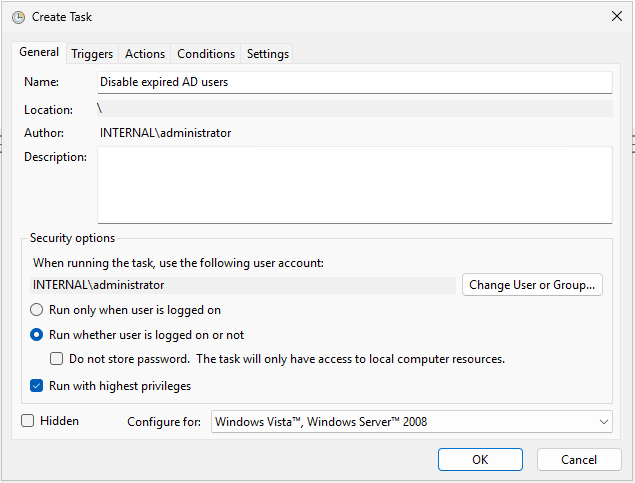
Then we just need to create a scheduled task as follows:
Note
The account used to run the scheduled task must be delegated appropriate permissions to the OUs containing the expired user accounts, so it can disable those users. It is highly recommended to use a group Managed Service Account (gMSA) to run the task, after verifying that it has been granted the necessary permissions.
Option 2: Use Conditional Access policies
To use Conditional Access to block access for expired accounts, you need to configure Entra Connect Sync or Entra Cloud Sync. This ensures that Entra ID is aware when an account has expired and can enforce the appropriate access policies.
Configuring Entra Connect Sync
Using the Synchronization Rules Editor, we’ll set up a logic to mark users in Entra ID as expired or not expired based on the Active Directory’s accountExpires attribute.
- Connect to the server that runs your Entra Connect Sync instance.
- From the start menu, open the Synchronization Rules Editor.
- Add a new inbound rule to set the
extensionAttribute1attribute in Entra ID toNot Expiredfor users who are not expired. Use the configuration below: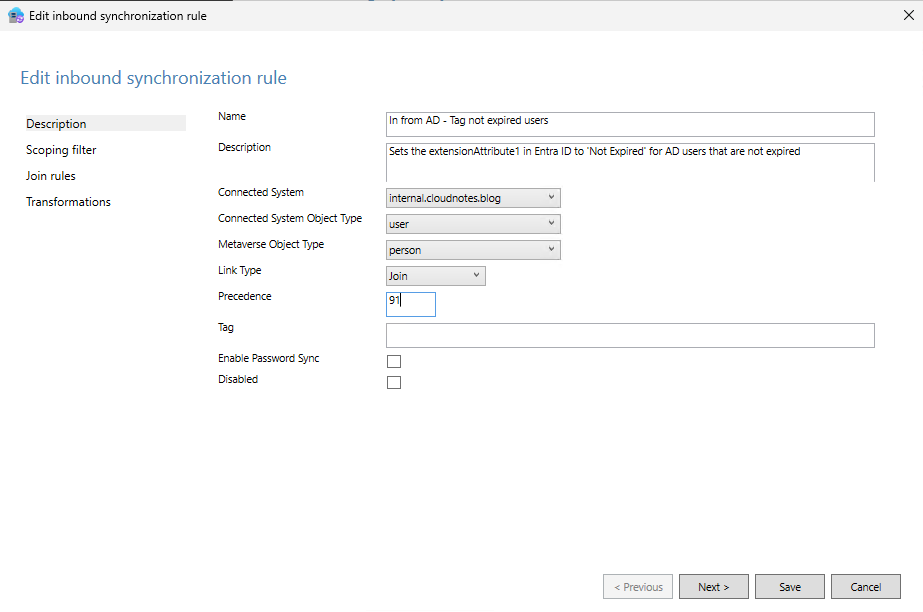
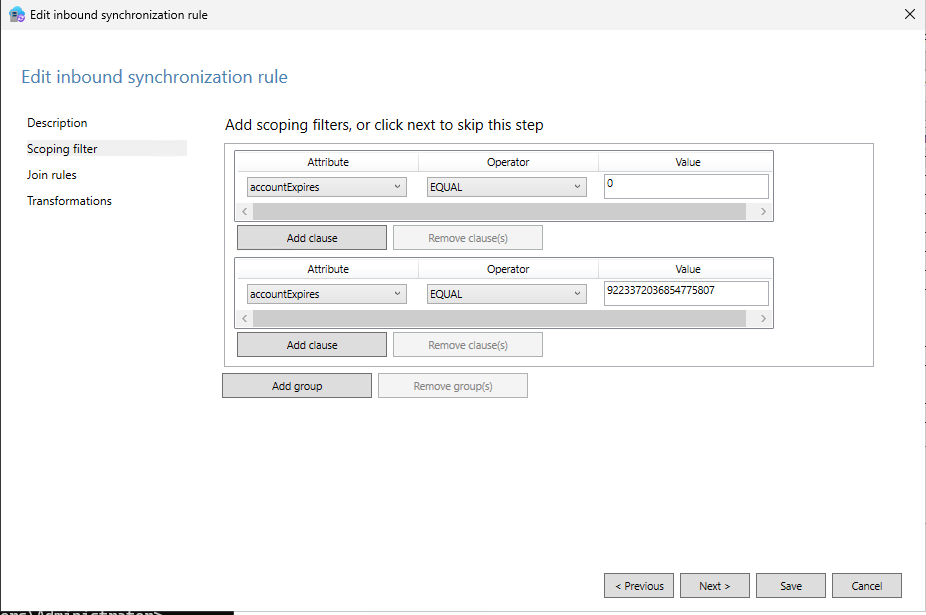 If
If accountExpiresEQUALS0oraccountExpiresEQUALS9223372036854775807.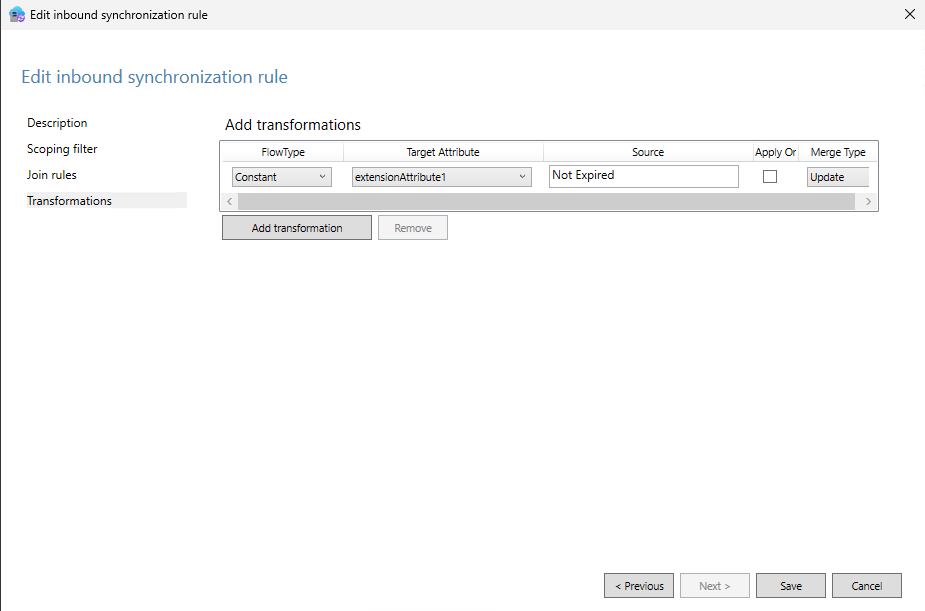
- Add another inbound rule to set the
extensionAttribute1attribute in Entra ID toExpiredfor users who are expired and toNot Expiredfor users that have an expiration set, but that is in the future. Use the configuration below: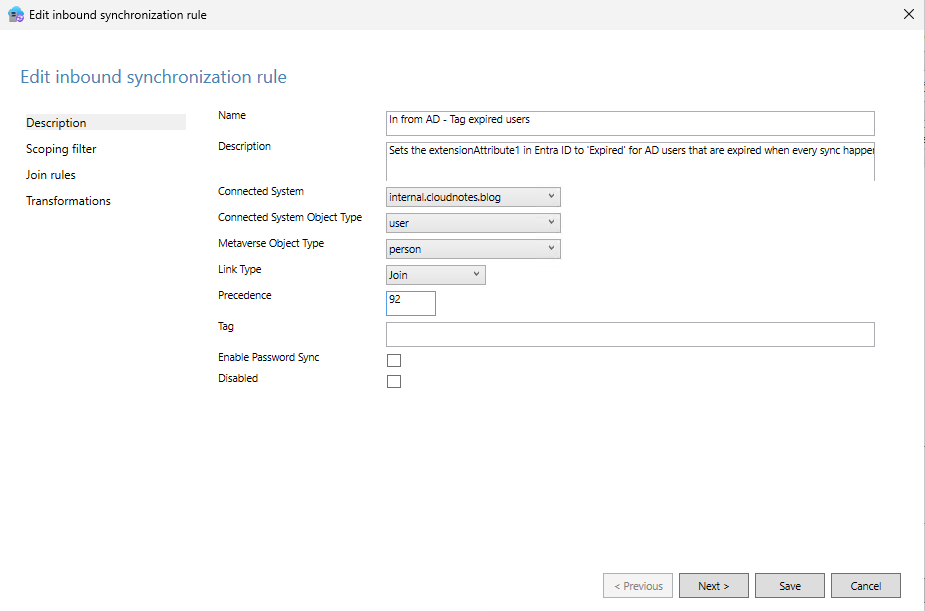
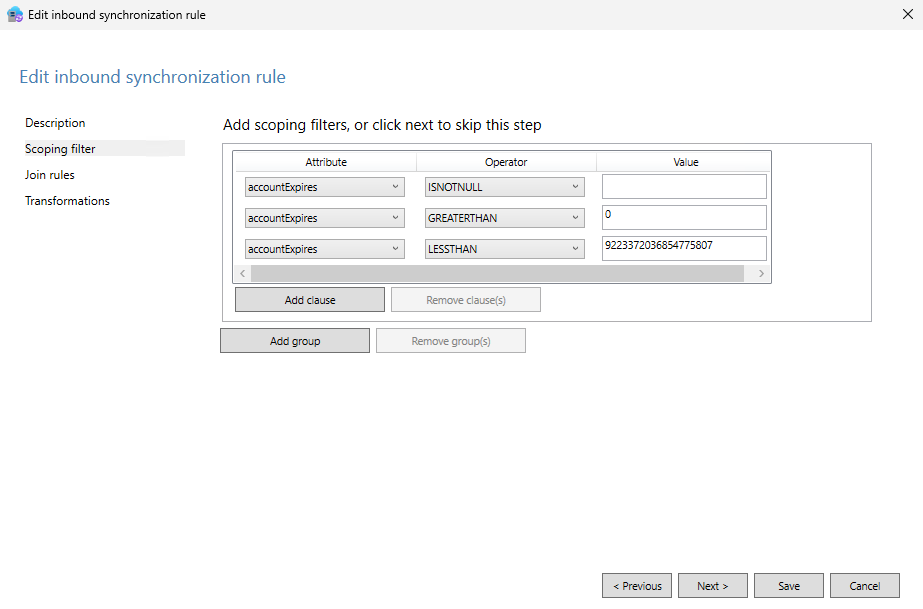 If
If accountExpiresISNOTNULL andaccountExpiresGREATERTHAN0andaccountExpiresLESSTHAN9223372036854775807.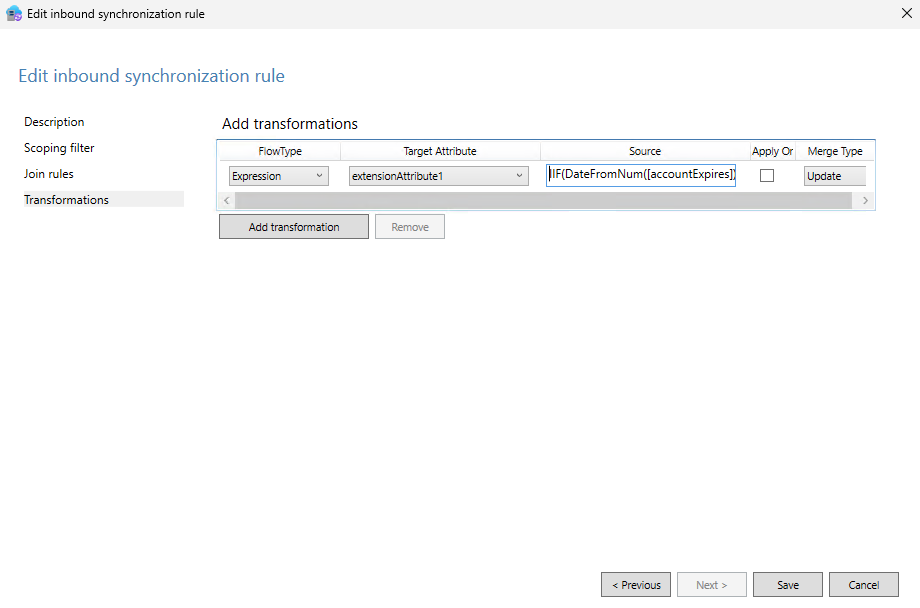 Use the following formula to determine if the
 extensionAttribute1attribute value should beExpiredorNot Expired:IIF(DateFromNum([accountExpires]) < Now(), "Expired", "Not Expired").
After creating the two specified rules, you must perform a full synchronization:
Start-ADSyncSyncCycle -PolicyType Initial
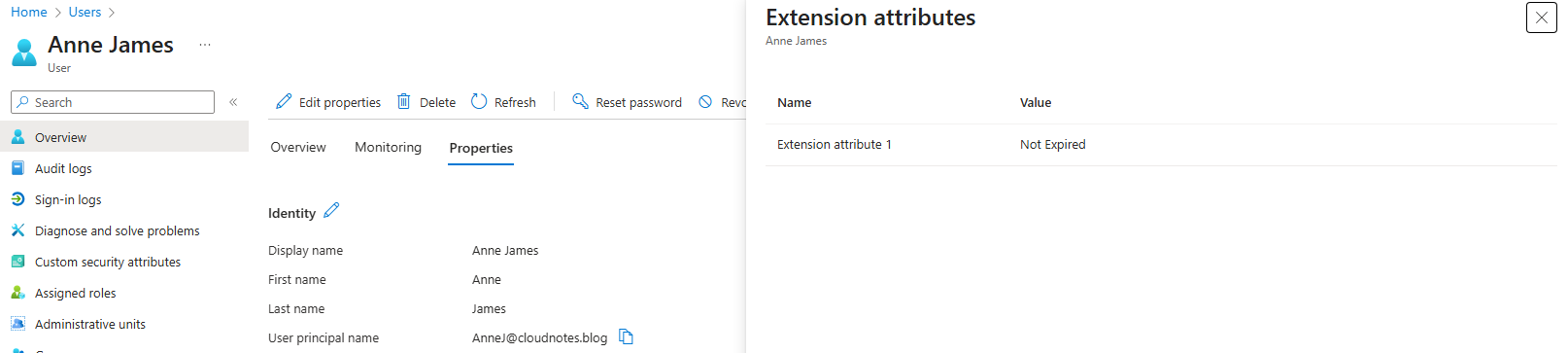
After the synchronization, users will appear in Entra ID with their extensionAttribute1 attribute set to either Expired or Not Expired, depending on the status of their account in Active Directory.
Alternative: Configuring Entra Cloud Sync
Entra Cloud Sync has some important limitations compared to Entra Connect Sync as, for example, it does not support scoping filters when transforming attributes during provisioning to Entra ID. As a result, we need to adapt our approach:
- In the Entra portal, go to the “Entra Connect” section and then choose “Cloud Sync”.
- Under the “Configurations” section you should see your Active Directory domain listed. Click on it.
- Select “Attribute mapping” and search for “extensionAttribute”.
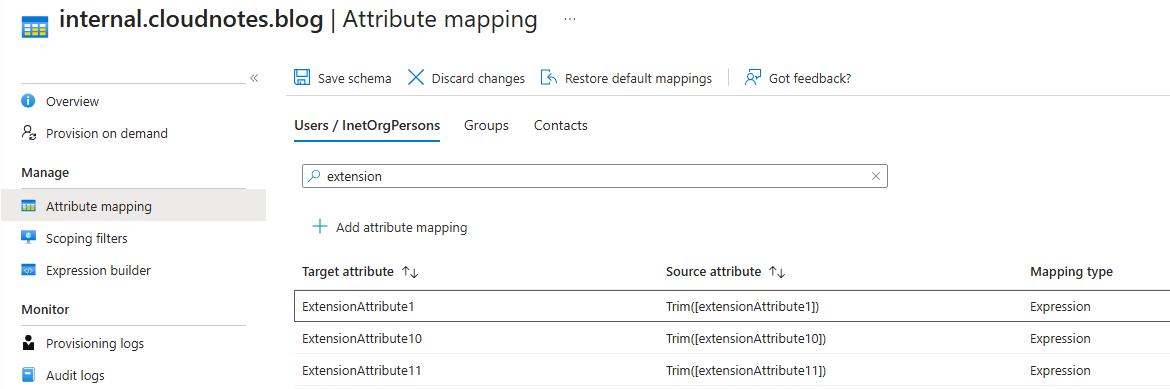
- Edit the
extensionAttribute1attribute as follows: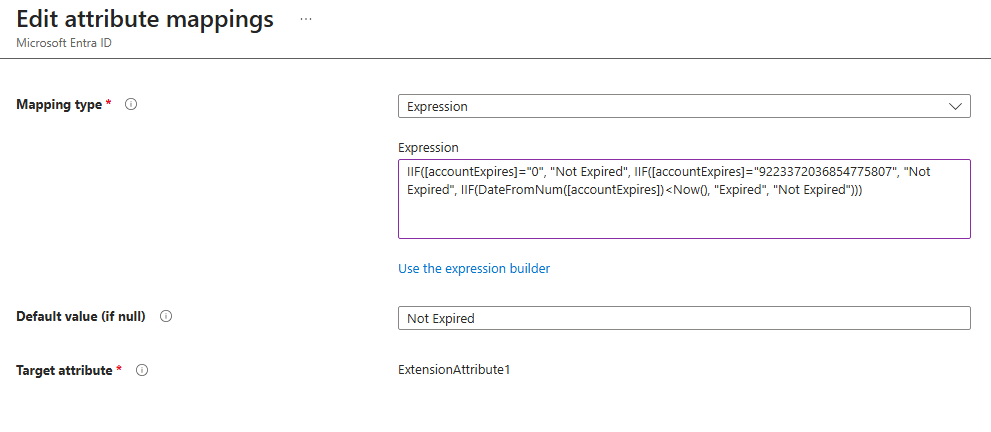 This expression checks the value of the
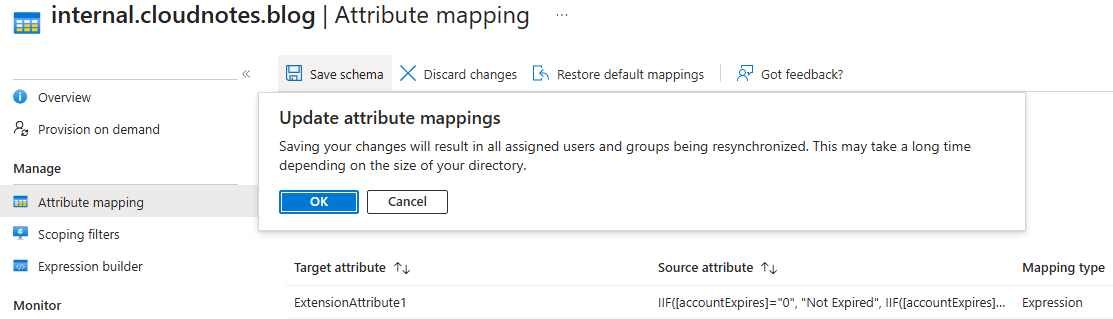
 accountExpiresattribute to determine whether an account is expired or not. If the value ofaccountExpiresis0or9223372036854775807, which both indicate that the account is set to never expire, the expression sets the result toNot Expired. If those values are not present, the expression then calculates the expiration date and compares it to the current date; if the expiration date is in the past, the result is set toExpired, otherwise it remainsNot Expired. Additionally, ifaccountExpiresis null, the attribute mapping in the GUI can be configured to set a default value, so the result will also beNot Expiredin those cases. - Save the new mapping. A full synchronization will occur.
Creating the policy
To create the Conditional Access policy that blocks access for expired users, we must first create a dynamic security group in Entra ID. This group should include all users whose extensionAttribute1 value indicates they are expired. This step is required because at the moment of writing, Conditional Access policies do not allow directly filtering users based on their attributes, hence we need to use groups.
- Create a new Dynamic User security group in Entra ID with the following membership rule:
(user.extensionAttribute1 -eq "Expired")
- Then, create the following Conditional Access policy:
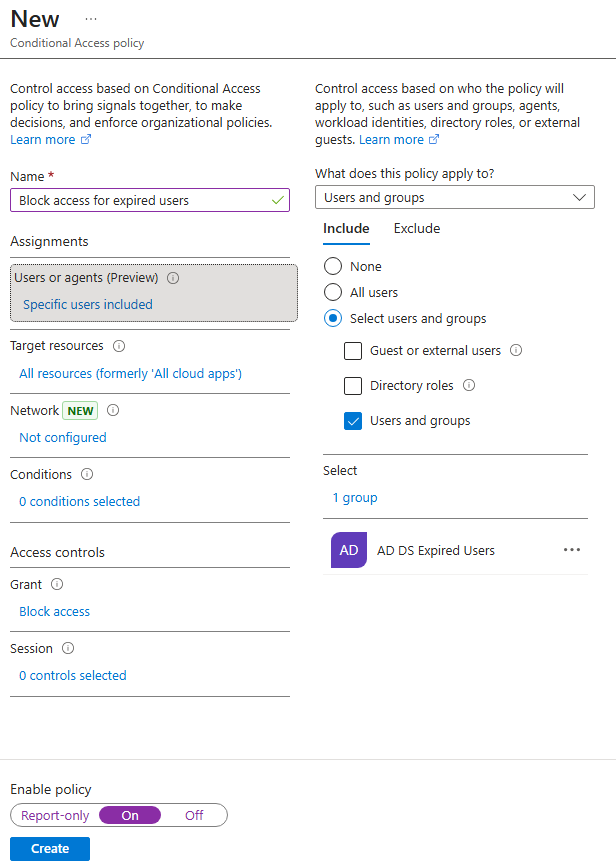
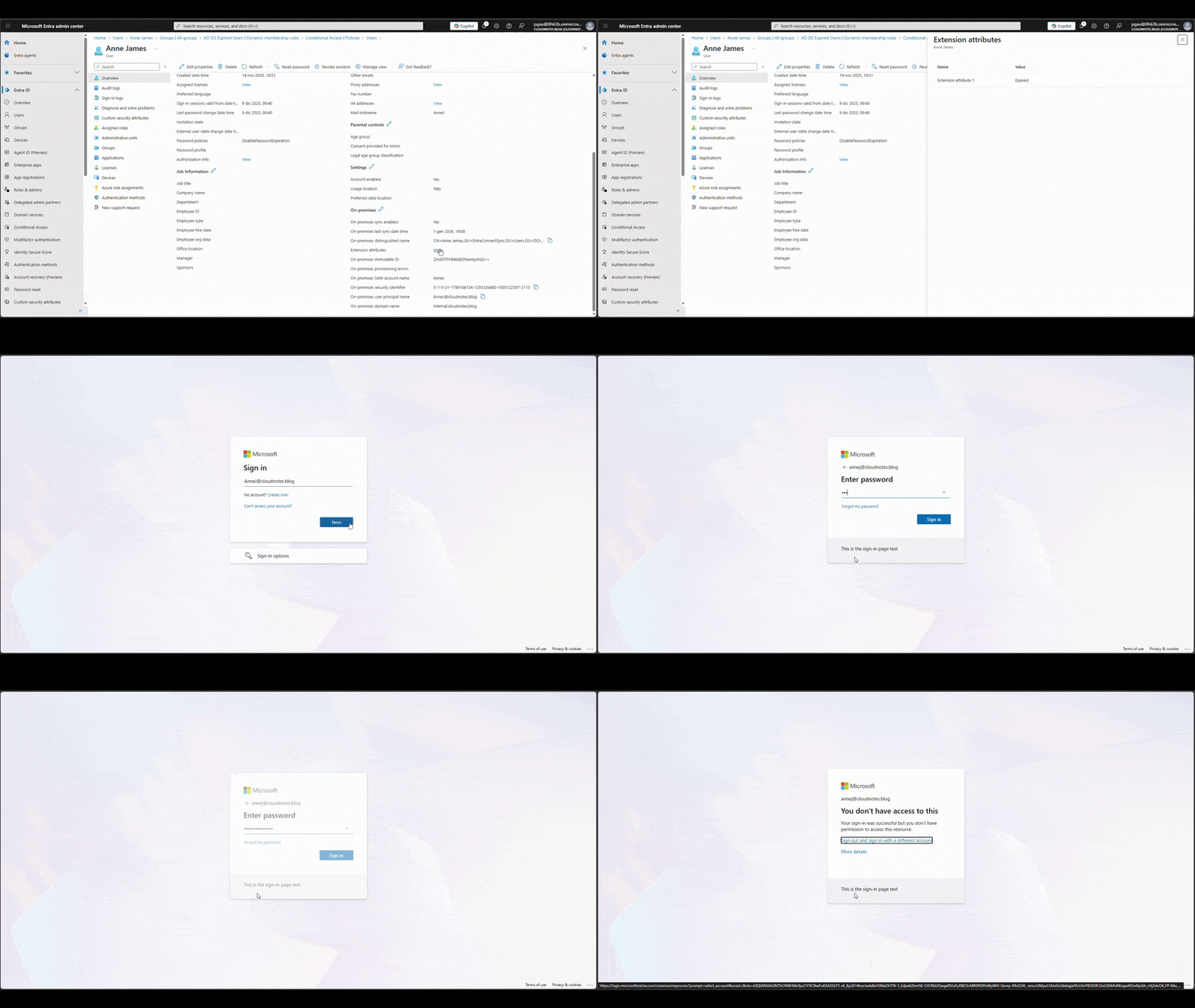
If an expired user attempts to access a resource with their Microsoft Entra account, access will be denied.
Audit user account changes
We can also monitor audit logs to track when an expiration date is set or changed for a user account. However, this type of auditing is not enabled by default, and it requires configuring a Group Policy Object to audit user account management events.
- Open Group Policy Editor (gpmc.msc) and create a new GPO.
- Navigate to
Computer Configuration → Policies → Windows Settings → Security Settings → Advanced Audit Policy Configuration → Audit Policies → Account Managementand set theAudit User Account Managementpolicy at least toSuccess.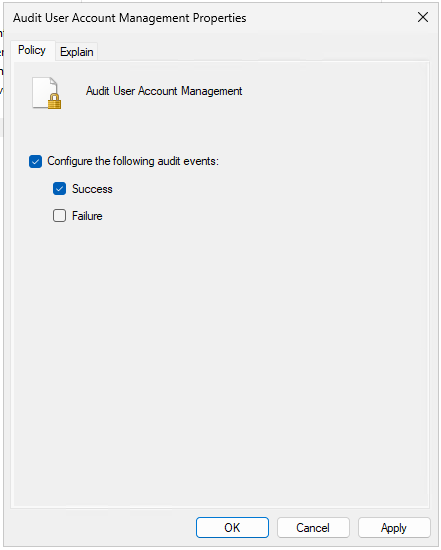
- Link the GPO to the Domain Controllers OU and perform a
gpupdate /forcein your domain controllers to ensure the new policy is applied.
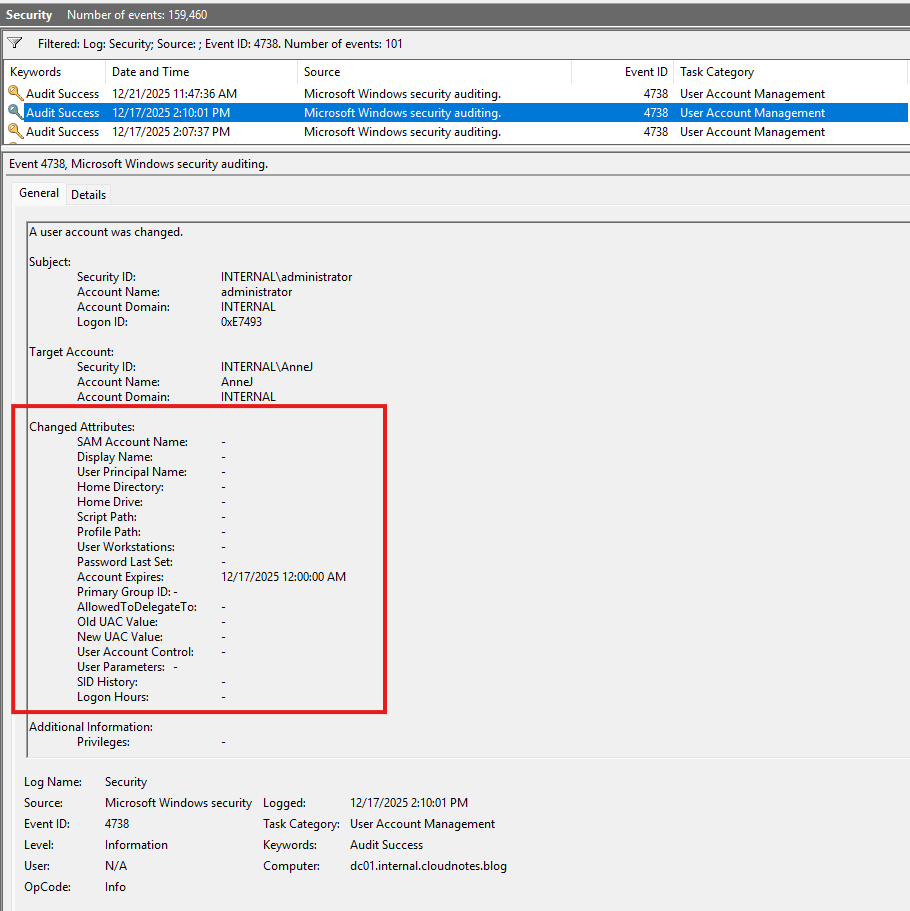
Once this auditing is enabled, the Security log will record Event ID 4738 whenever changes are made to a user account, including when the account expiration date is set or modified. This event provides details about what was changed and by whom, helping you monitor and track account management activities in your environment.
Conclusion
While you can configure Entra ID to respect account expirations in on-premises Active Directory using the approaches described in this blog post, it’s important to note that these solutions may introduce a slight delay before access is blocked for expired accounts. If immediate blocking of access is essential for your organization, migrating from password hash synchronization to pass-through authentication should be considered, as it enables Entra ID to enforce account status changes in real time.