
Force password change at next logon for hybrid identities in Entra
- Davide Cenedese
- Microsoft 365 , Entra ID , Active directory
- December 16, 2025
Table of Contents
Many organizations still operate in a hybrid identity environment, where on-premises Active Directory accounts are synchronized with Entra ID. In such setups, there may still be the need to enforce password changes for users, similar to how it was traditionally managed within Active Directory.
Use Case
In this article, we’ll explore how to configure Entra Connect Sync to support the ‘User must change password at next logon’ setting from Active Directory when Password Hash Sync is configured. We’ll examine how this configuration benefits both users and administrators, and outline the available methods for enforcing password changes at the next sign-in.
The problem
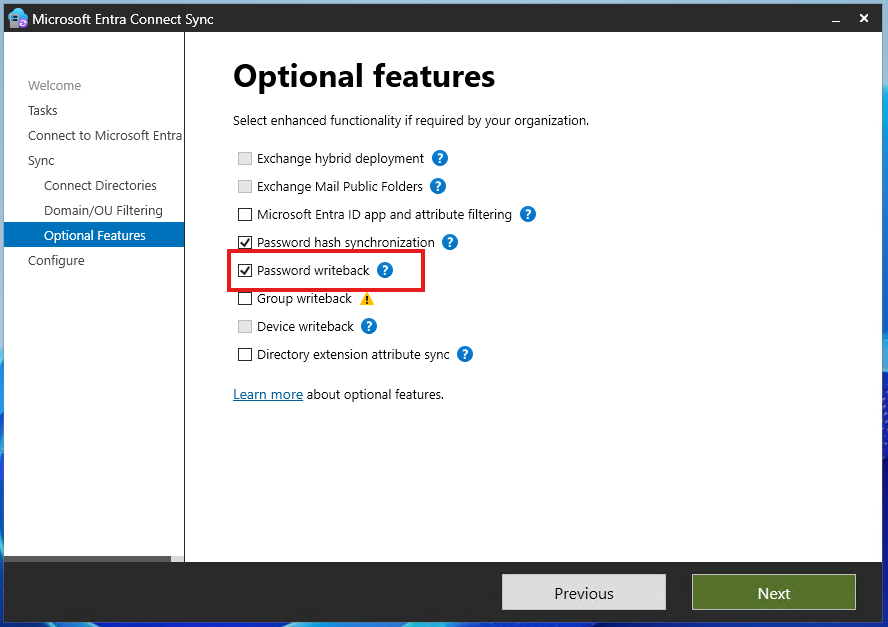
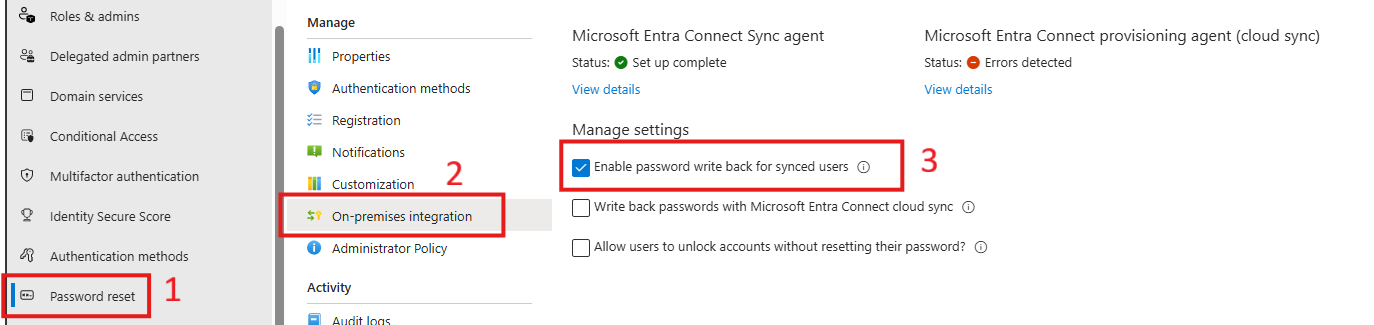
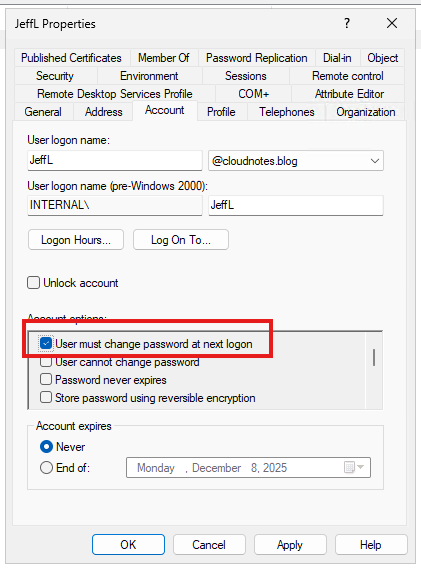
You can notice that even if password writeback is enabled in Entra Connect Sync and the ‘Enable password writeback for synced users’ option is selected in the Entra portal, users still cannot change their password from Entra ID if they are flagged in Active Directory to change it at next logon.
Instead, they will be able to sign in using their current password without receiving any notification that a password change is required.

Why is this happening?
By default, Entra Connect Sync does not synchronize the ‘User must change password at next logon’ attribute from Active Directory. This means that even if a user is flagged in AD to change their password at the next sign-in, this requirement is not reflected in Entra ID. As a result, Entra ID does not enforce the password change, nor does it notify the user, leading to a mismatch in expected behavior between on-premises and cloud environments.
Note then once password writeback is enabled both in Entra Connect Sync and in the Entra portal under Password Reset (see picture above), you can enforce a password change at next logon by setting the appropriate flag via Microsoft Graph.
Connect-MgGraph -Scopes "User.ReadWrite.All", "Directory.ReadWrite.All", "Directory.AccessAsUser.All"

Import-Module -Name Microsoft.Graph.Users

$userId = "JeffL@cloudnotes.blog" #Change according to your user's UPN

$PasswordProfile = @{
	ForceChangePasswordNextSignIn = $true
}
Update-MgUser -UserId $userId -PasswordProfile $PasswordProfile
In this case, the user will be prompted to change its password, but only when signing in through Entra ID. If the user logs in directly to Active Directory (e.g., via a domain-joined or hybrid-joined device), the password change will not be enforced. This behavior works independently of whether Self-Service Password Reset (SSPR) is enabled in Entra. The password change enforcement via Microsoft Graph and password writeback does not rely on SSPR being active.
Making Entra Connect Sync respect the ‘Change password at next logon’ flag
To enable this functionality, you simply need to run a single PowerShell cmdlet on your Entra Connect Sync server.
Set-ADSyncAADCompanyFeature -ForcePasswordChangeOnLogOn $true

# After turning on the feature, manually force a delta sync
Start-ADSyncSyncCycle -PolicyType Delta
 Then, verify also that the UserForcePasswordChangeOnLogonEnabled feature is enabled in your Microsoft 365 tenant:
Connect-MgGraph -Scopes "OnPremDirectorySynchronization.Read.All"
Import-Module Microsoft.Graph.Identity.DirectoryManagement

Get-MgDirectoryOnPremiseSynchronization | Select-Object -ExpandProperty Features | fl UserForcePasswordChangeOnLogonEnabled
# Check that output is True
If the output of the previous command is not True, you need to enable the feature:
Connect-MgGraph -Scopes "OnPremDirectorySynchronization.ReadWrite.All"

$OnPremSync = Get-MgDirectoryOnPremiseSynchronization $OnPremSync.Features.UserForcePasswordChangeOnLogonEnabled = $true

Update-MgDirectoryOnPremiseSynchronization -OnPremisesDirectorySynchronizationId $OnPremSync.Id -Features $OnPremSync.Features
Additionally, you should check that the ‘Minimum password age’ is set to 0 days in Active Directory.
You can do this from Group Policy Editor (gpmc.msc) by verifying your Default Domain Policy or any custom policies configuration at the following path: Computer Configuration -> Policies -> Windows Settings -> Security Settings -> Account Policies -> Password Policy
Testing the new configuration
Now that the ForcePasswordChangeOnLogOn feature is enabled, we can test its behavior by selecting the ‘User must change password at next logon’ checkbox for our test user in Active Directory.
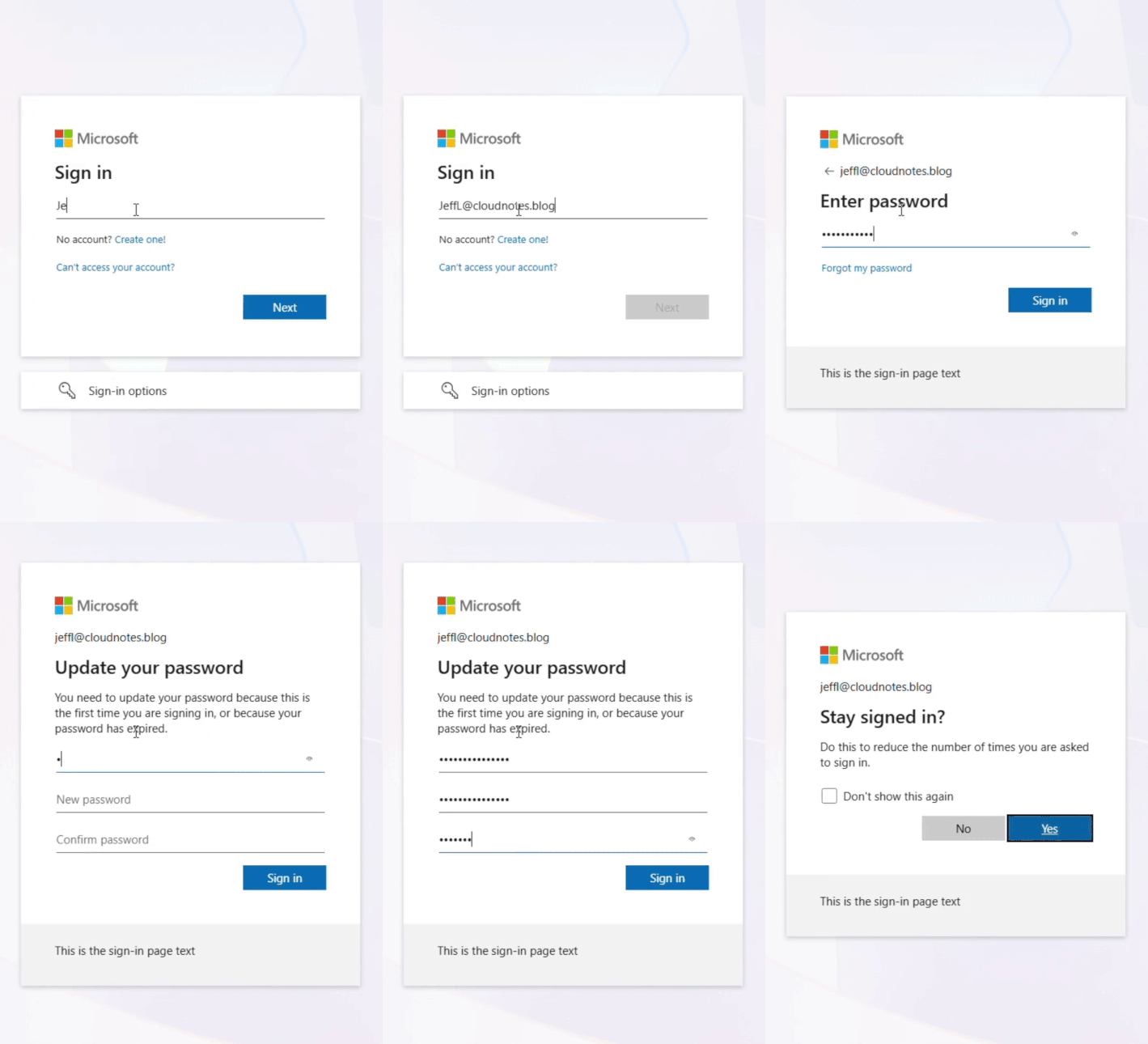
Once the user signs in to Entra ID and successfully changes their password, the ‘User must change password at next logon’ checkbox in Active Directory is automatically cleared.
Limitations
Password change required for a new synced user
When you create a new on‑premises AD DS account that will be synchronized to Entra ID and you assign a temporary password while checking ‘User must change password at next sign‑in’ Entra ID will only enforce the change password on next sign‑in behavior if the Entra Connect sync setting ForcePasswordChangeOnLogOn is enabled at the time of synchronization. If that sync feature is disabled when the user object is created, the temporary password sign‑in will fail with an incorrect password error in Entra ID.
If you enable the feature afterwards, the sync will not automatically fix already created objects; you must clear the on‑prem ‘User must change password at next sign‑in’ checkbox, perform a sync, then re‑check the box and sync again so Entra ID receives and enforces the flag.
Usage of the Microsoft 365 Admin Center
If you reset a user’s password using the Microsoft 365 admin center instead of Entra ID, the password will not be written back to AD DS. This is due to a limitation in the libraries used by the portal, which prevents password writeback with Active Directory Domain Services.
You can find more information about this here: Troubleshoot admin password resets in Microsoft 365 admin center
Feature support in Entra Cloud Sync
Entra Cloud Sync supports enforcing ‘User must change password at next sign‑in’. Use the same on‑prem configuration described earlier; you won’t be able to enable the ForcePasswordChangeOnLogOn setting manually because Entra Cloud Sync enables that behavior by default.
Feature support in Entra-joined devices
Entra-joined devices handle the ‘Force user to reset password at next sign-in’ setting differently compared to domain-joined or hybrid-joined devices. There are two distinct scenarios:
Sign-in on a new Entra-joined device
If a user is required to reset their password at next sign-in and they log in to a new Entra-joined device, they will be prompted to change their password immediately.
Sign-in on an existing Entra-joined device
If the same user signs in to an existing Entra-joined device, the password reset is not enforced during login. The user can still access the device using their old password.
However, they can initiate a password change manually by pressing Ctrl + Alt + Del and selecting Change Password. This action redirects them to the My Sign-ins page, where they will be required to update their password.
Conclusion
In today’s hybrid identity landscape, ensuring that password policies remain consistent across both on‑premises Active Directory and Microsoft Entra ID is critical for security and user experience. By enabling the ForcePasswordChangeOnLogOn feature and aligning synchronization settings, organizations can bridge the gap between legacy infrastructure and modern cloud environments.
While limitations exist, particularly around Entra-joined devices, the ability to enforce password changes at next sign‑in strengthens compliance and reduces risk.