
Evaluate Conditional Access policies in report-only mode
- Davide Cenedese
- Microsoft 365 , Entra ID , Microsoft azure
- February 19, 2026
Table of Contents
Evaluating Conditional Access policies in report-only mode helps administrators understand the impact of policy changes before enforcing them. With report-only mode in Microsoft Entra ID, you can analyze how policies would affect user sign-ins without disrupting access or applying restrictions.
Use Case
This article explains how to evaluate Conditional Access policies in Microsoft Entra ID using report-only mode. It covers when to use report-only mode, its limitations, and the tools available for monitoring and testing policy impact before enforcement.
What is report-only mode and when to use it
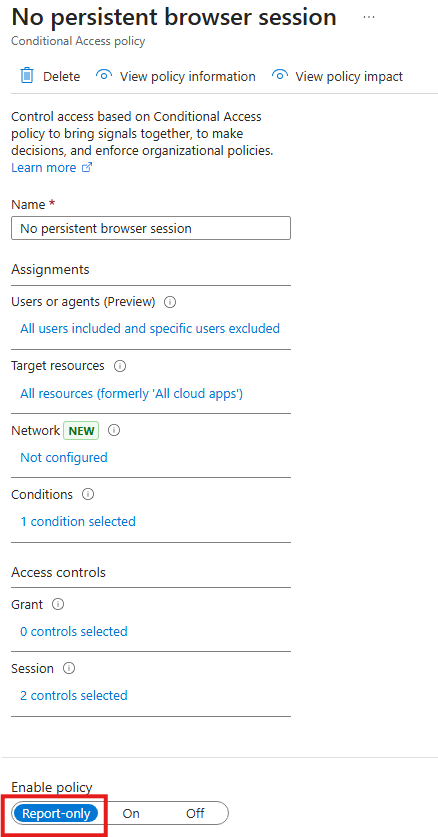
Report-only mode is a setting for Conditional Access policies in Microsoft Entra ID that allows you to evaluate the effects of a policy without actually enforcing it. When a policy is set to report-only, user sign-ins are evaluated against the policy and the results are logged, but no actions are applied or access blocked.
This mode is useful when you want to test new or updated policies and see how they would affect users in your environment. It helps identify potential issues or unintended consequences before enabling a policy in enforce mode, minimizing disruption to users and business processes. Use report-only mode when planning significant changes to access controls or when you want to review the impact of policies in complex environments.
Limitations of report-only mode
The following limitations apply when using policies in report-only mode:
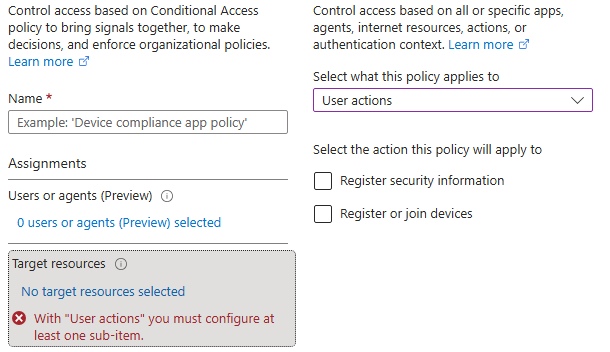
- Policies that target “User actions” in “Target resources” are not evaluated in report-only mode.
- If a policy requires a compliant device on macOS, iOS, or Android, users may still receive a prompt to select a device certificate, even though the policy itself is not enforced.
Monitoring and testing Conditional Access policies
Proper monitoring and testing are essential when evaluating Conditional Access policies in report-only mode. Microsoft Entra ID provides several tools and features to help administrators review policy effects, analyze sign-in behavior, and validate policy configurations before enforcement. These options enable you to gain insights into how policies would impact your environment, identify potential issues, and make informed decisions about policy changes.
Sign-in logs
In the sign-in logs, the outcome of report-only policy evaluations appears in the “Report only” tab within each log entry.
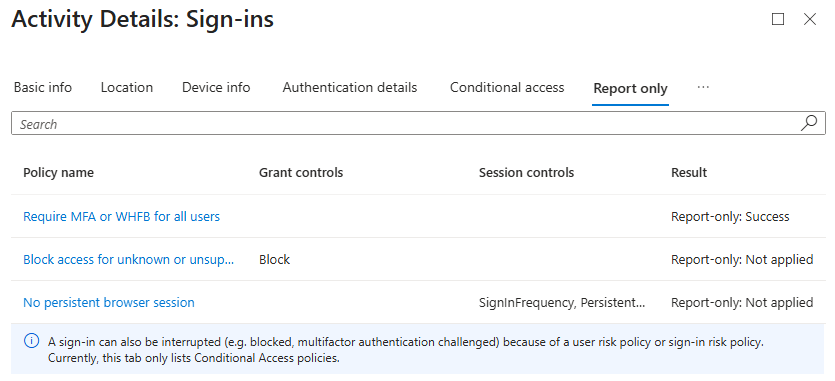 For each policy, one of the following results is shown:
- Report-only: Success. All configured policy conditions, required non-interactive grant controls, and session controls are met for the sign-in, so if the policy were enforced, it would have granted access.
- Report-only: Failure. All configured policy conditions are met, but one or more required non-interactive grant controls or session controls are not satisfied. If the policy were enforced, it would have blocked access.
- Report-only: User action required. All configured policy conditions are met, but user interaction would be required to fulfill the necessary grant controls or session controls. For example, if the policy requires accepting terms of use, the user would need to complete this action if the policy were enforced. In report-only mode, the user is not prompted to take any action.
- Report-only: Not applied. Not all policy conditions were met, so the policy does not apply to this sign-in.
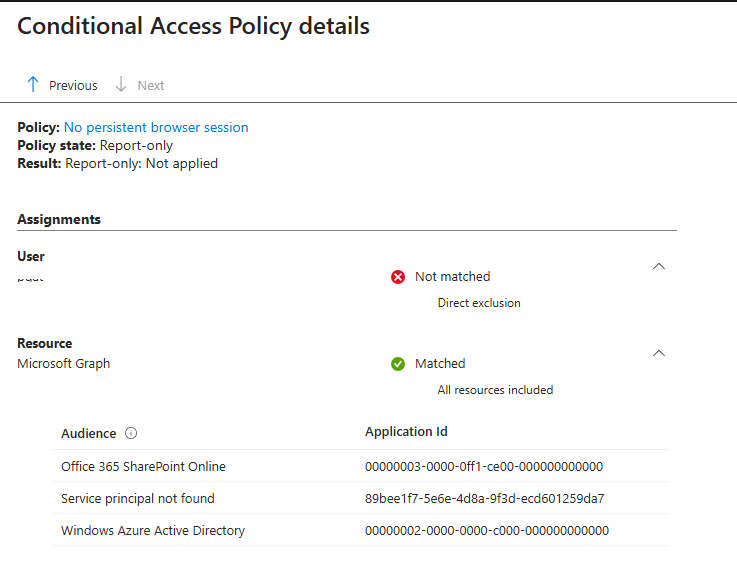
In the “Report-only” tab of each sign-in log, you can click on any listed Conditional Access policy to view additional details. In the example below, examining the “No persistent browser session” policy, highlights that the policy was not applied due to a direct exclusion of the user who attempted to sign in.
Info
Least privilege role for accessing sign-in logs: Reports Reader
What If tool
The What If tool helps administrators predict the impact of Conditional Access policies before they are enforced. By simulating sign-in scenarios, the tool determines which policies would apply to a specific user under defined conditions, without requiring an actual sign-in attempt. It also allows administrators to view how policies would apply during troubleshooting, making it easier to diagnose and resolve Conditional Access-related issues. The tool evaluates all policies, whether they are set to report-only, enabled, or disabled, giving a comprehensive overview of policy effects.
To use the What If tool, navigate to the Conditional Access page and select “Policies”. You will find the “What If” button on the top menu.

Test a scenario by selecting an identity (member users and guests, workload identities and agent identities are supported) and defining attributes related to the sign-in, such as the application, device platform, location, or sign-in risk level. The tool then analyzes these inputs and displays which Conditional Access policies would be evaluated, applied, or excluded for the scenario. This helps you identify gaps, conflicts, or unexpected results, allowing for informed policy adjustments.
Here is an example of What If evaluation:
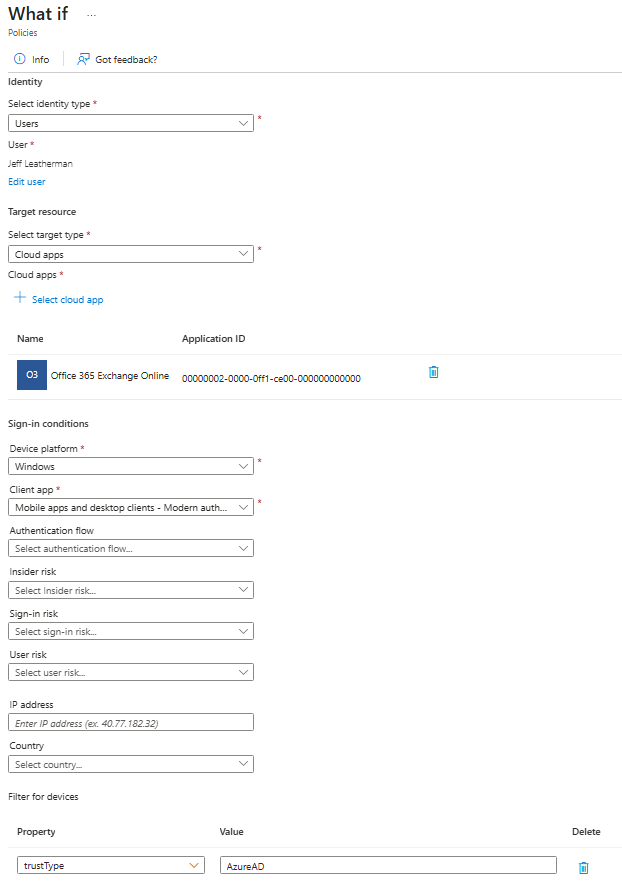
The results include detailed information about each policy, including assignments, conditions, and controls that would be triggered. The What If tool does not modify any policy or sign-in behavior as it is purely for testing and planning purposes.
Info
Least privilege role for accessing What If tool: Security Reader
Policy Impact tool
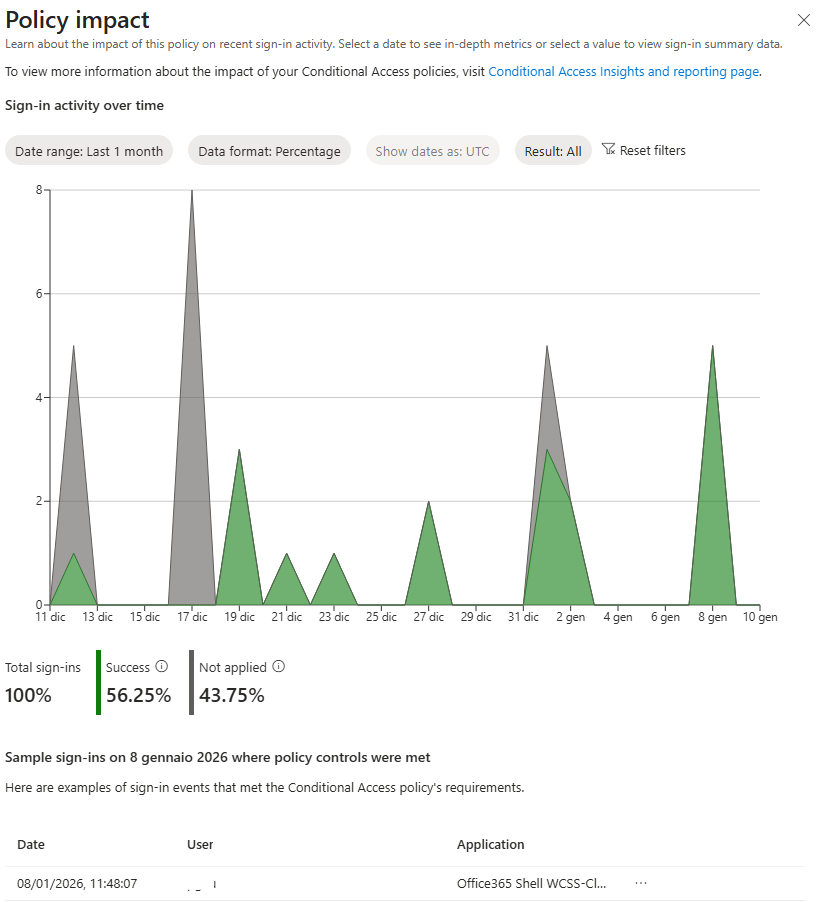
The Policy Impact tool provides detailed insights into how individual Conditional Access policies are applied throughout your organization. It displays a graphical summary of each policy’s impact, including data on successful, failed, and not applied policies over the past 30 days. This visual representation helps administrators quickly assess the effectiveness and coverage of each policy.
For a deeper analysis, you can view day-by-day details to see which users were impacted by the policy on specific dates and which applications were involved.
Info
Least privilege role for accessing Policy Impact tool: Security Reader
Azure Monitor workbooks
Azure Monitor Workbooks offer a powerful and interactive way to visualize and analyze data collected from your Microsoft Entra ID sign-in logs. In this context we will use them to visualize how report-only Conditional Access policies would be applied in your environment.
Step 1: Create a Log Analytics workspace in Azure
To begin, you’ll need an Azure subscription.
- Go to the Azure portal: https://portal.azure.com
- In the search bar at the top, type
Log Analyticsand open the service.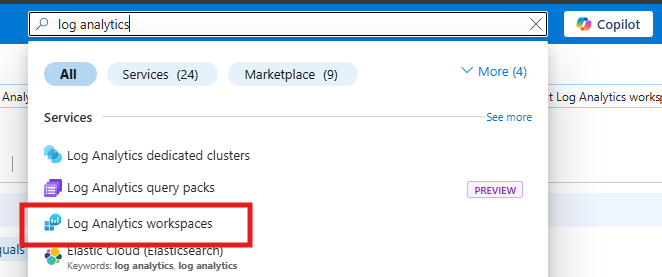
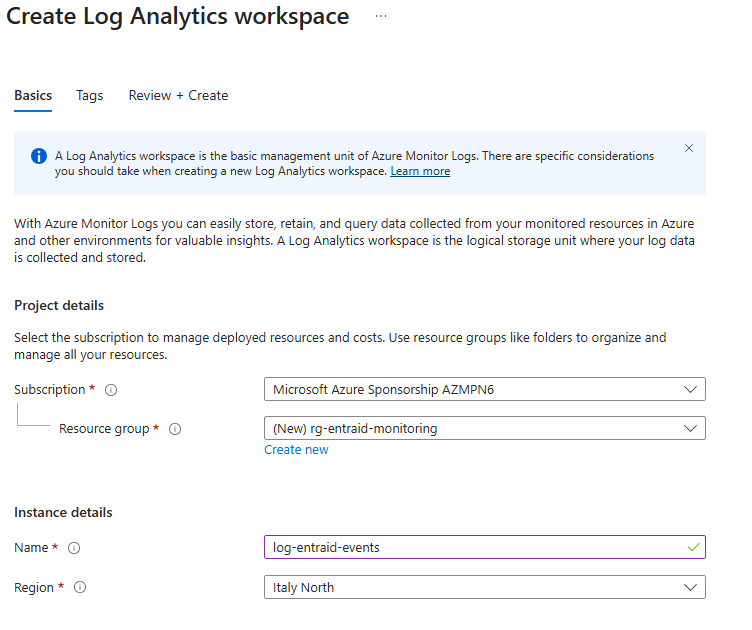
- Select
Createto start creating a new workspace. - Fill in the required details (such as Subscription, Resource group, Workspace name, and Region), then create the workspace.
Info
Permission required for creating a Log Analytics workspace: Microsoft.OperationalInsights/workspaces/write
This permission is included in the built-in Azure role Log Analytics Contributor
Step 2: Send Entra sign-in logs to Log Analytics
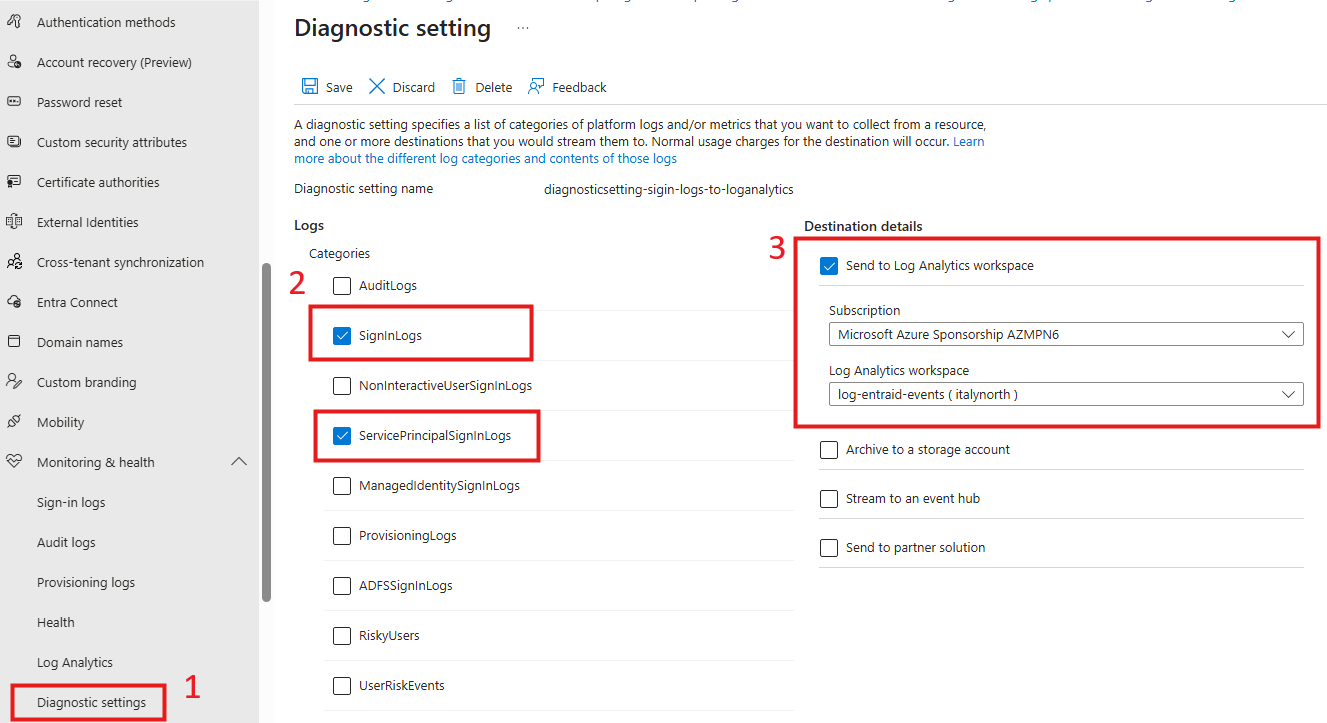
Next, we’ll create a diagnostic setting in Microsoft Entra ID so that sign-in logs are sent to the Log Analytics workspace we created in Step 1.
- Go the Entra portal (https://entra.microsoft.com).
- In the left menu, go to:
Monitoring & health→Diagnostic settings. - Add a new diagnostic setting.
- Enter a name for the diagnostic setting.
- Under Log Categories, it is sufficient that you select
SignInLogs, as Conditional Access policies outcomes are logged in this category. If you also need to evaluate policies applied to service principals (applications), you should also configureServicePrincipalSignInLogs. This ensures that both user and application sign-ins are included in your Conditional Access policy reporting. - Under Destination details, choose Send to Log Analytics workspace.
- Select the Subscription and the Log Analytics workspace you created in Step 1.
- Save.
Info
Least privilege role for creating a diagnostic setting to send logs outside Entra ID: Security Administrator
Step 3: View predefined sign-in log visualizations
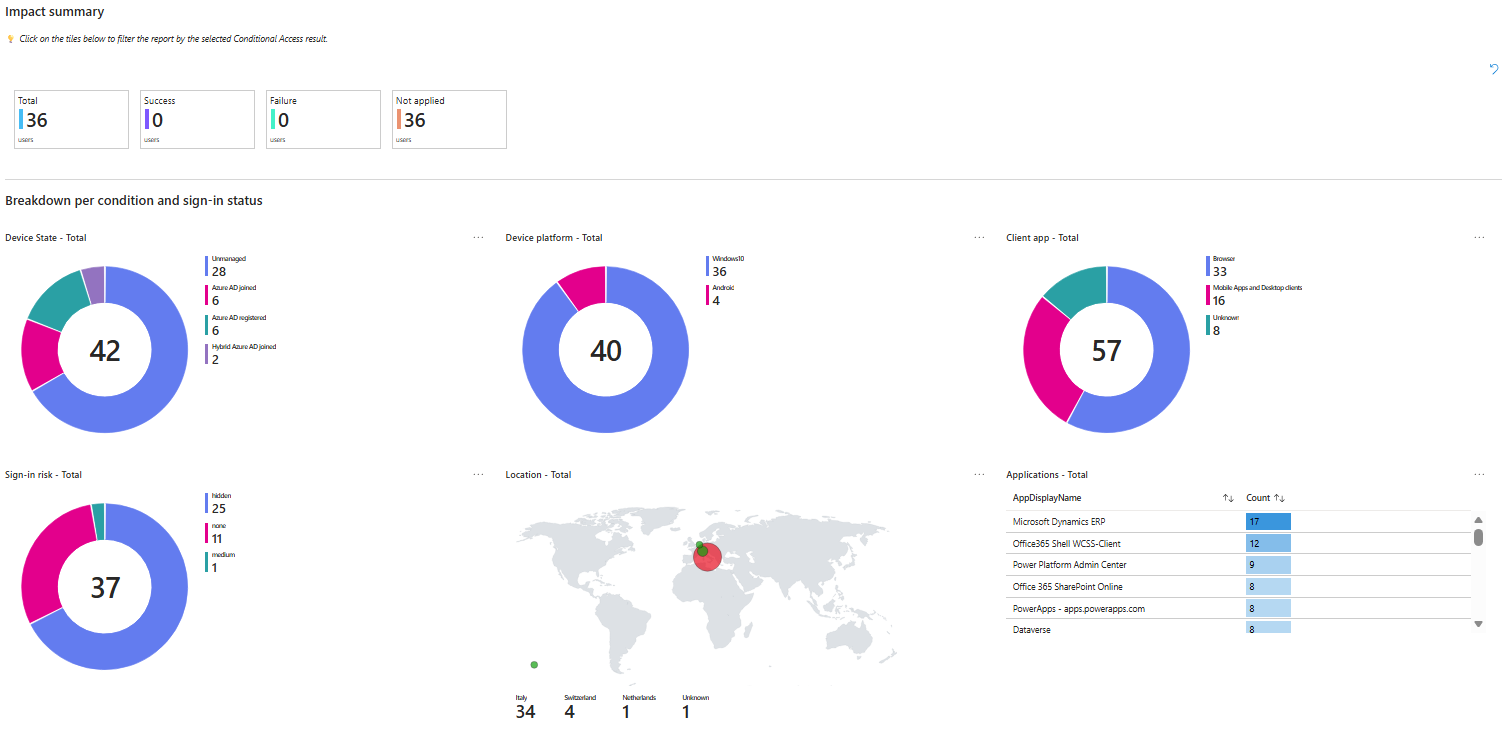
After some time (once sign-in events have been collected), you can consult predefined visualizations built on top of the data gathered in the Microsoft Entra ID sign-in logs.
Still in Microsoft Entra ID, go to Conditional Access → Insights and reporting. An Azure Monitor Workbook is displayed to help you explore and filter the collected sign-in log data, including how report-only Conditional Access policies would have been applied.
Step 4: Create a custom workbook
While the workbook shown in the previous step provides useful, predefined insights based on the collected sign-in logs, it is generally not sufficient to fully understand the real impact that report-only Conditional Access policies would have once they are enforced. To perform a deeper analysis (for example, understanding exactly who and what would be blocked, and under which conditions), we will need to create a custom Azure Monitor Workbook tailored to our environment and reporting needs.
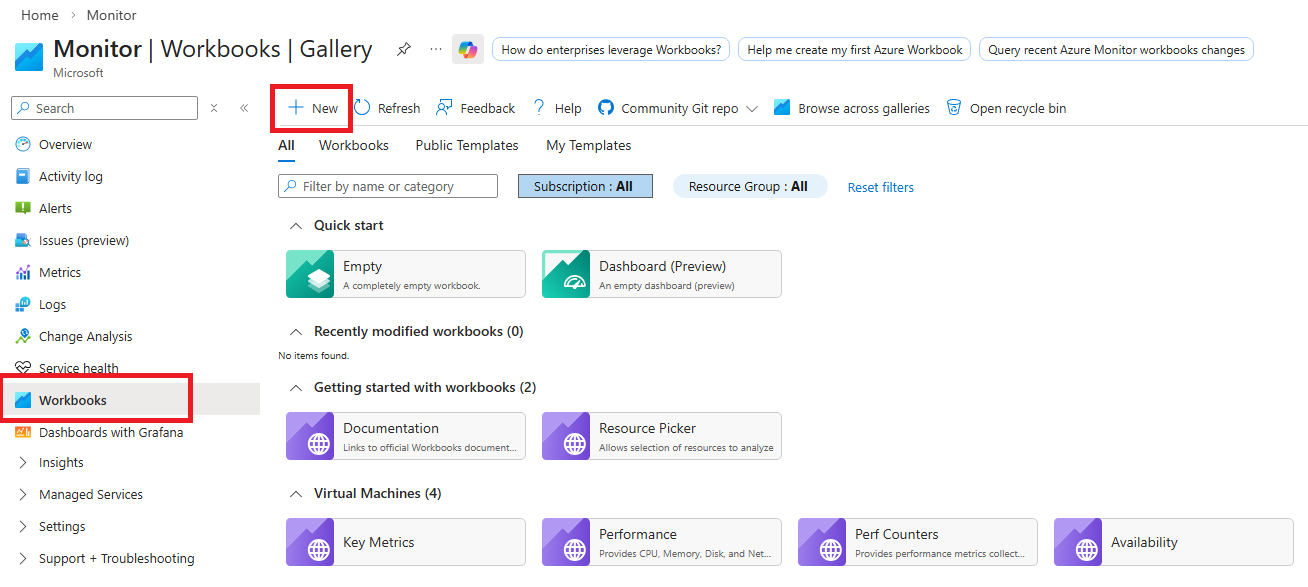
- Go back to the Azure portal and search for
Monitorin the search bar at the top. This will open Azure Monitor. - From the left-column menu, choose Workbooks and the create a new one.
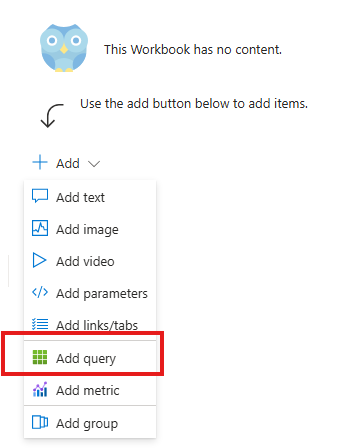
- A new blank workbook will open, and we’ll need to start by adding some content. Add a new query written in Kusto Query Language (KQL) that returns the sign-in events that would be blocked by our new Conditional Access policy that is currently configured as report-only. While building the query, make sure you select the Log Analytics workspace you configured to receive the sign-in logs.
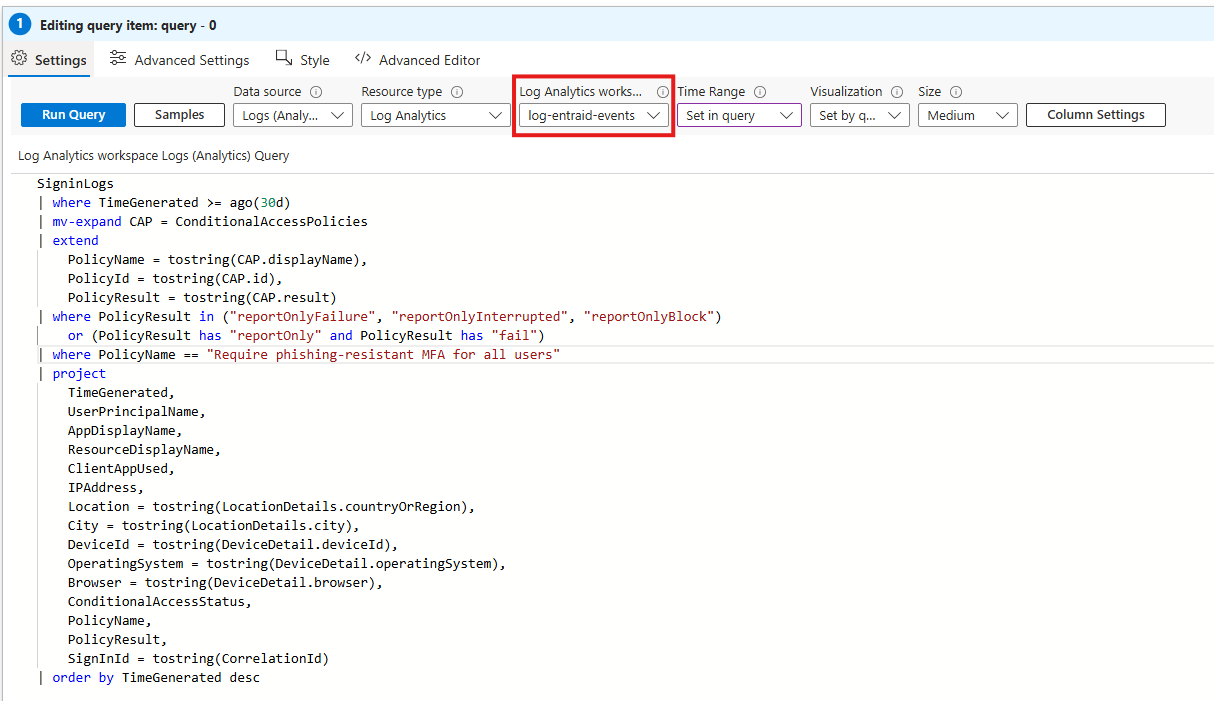
- Once we have finished editing our query, confirm the changes by clicking on Done editing, and then Save. The result of our query will be displayed.
- Continue building the workbook by adding all the queries you need. You can organize them into multiple collapsible sections, render results as tables or charts, and enrich the workbook with text blocks and interactive controls such as search boxes, date/time pickers, and other parameters to make analysis easier.
Info
Permission required for creating a workbook: Microsoft.insights/workbooks/write
This permission is included in the built-in Azure role Workbook Contributor
You will also need access to the data sources you query in your workbook
Some useful queries
SigninLogs
| where TimeGenerated >= ago(30d)
| extend CAP = ConditionalAccessPolicies
| mv-expand CAP
| extend
    PolicyName = tostring(CAP.displayName),
    PolicyId = tostring(CAP.id),
    PolicyResult = tostring(CAP.result),
    PolicyEnforced = tostring(CAP.enforcedGrantControls)
| where PolicyResult in ("reportOnlyFailure", "reportOnlyInterrupted", "reportOnlyBlock") or PolicyResult has "reportOnly" and PolicyResult has "fail"
| summarize
    NumberOfSignins = count(),
    NumberOfUsers = dcount(UserPrincipalName),
    NumberOfApps = dcount(AppDisplayName),
    NumberOfIPs = dcount(IPAddress)
  by PolicyName, PolicyId
| order by NumberOfSignins desc
SigninLogs
| where TimeGenerated >= ago(30d)
| mv-expand CAP = ConditionalAccessPolicies
| extend
    PolicyName = tostring(CAP.displayName),
    PolicyId = tostring(CAP.id),
    PolicyResult = tostring(CAP.result)
| where PolicyResult in ("reportOnlyFailure", "reportOnlyInterrupted", "reportOnlyBlock")
    or (PolicyResult has "reportOnly" and PolicyResult has "fail")
| project
    TimeGenerated,
    UserPrincipalName,
    AppDisplayName,
    ResourceDisplayName,
    ClientAppUsed,
    IPAddress,
    Location = tostring(LocationDetails.countryOrRegion),
    City = tostring(LocationDetails.city),
    DeviceId = tostring(DeviceDetail.deviceId),
    OperatingSystem = tostring(DeviceDetail.operatingSystem),
    Browser = tostring(DeviceDetail.browser),
    ConditionalAccessStatus,
    PolicyName,
    PolicyResult,
    SignInId = tostring(CorrelationId)
| order by TimeGenerated desc
SigninLogs
| where TimeGenerated >= ago(30d)
| mv-expand CAP = ConditionalAccessPolicies
| extend
    PolicyName = tostring(CAP.displayName),
    PolicyResult = tostring(CAP.result)
| where PolicyResult in ("reportOnlyFailure", "reportOnlyInterrupted")
| summarize Signins = count() by bin(TimeGenerated, 1d), PolicyResult
| order by TimeGenerated asc
SigninLogs
| where TimeGenerated >= ago(30d)
| mv-expand CAP = ConditionalAccessPolicies
| extend PolicyName = tostring(CAP.displayName),
         PolicyResult = tostring(CAP.result)
| where PolicyResult in ("reportOnlyFailure","reportOnlyInterrupted","reportOnlyBlock")
| where PolicyName startswith "NEW-"
| summarize ImpactedSignins = count(), Users = dcount(UserPrincipalName) by AppDisplayName
| order by ImpactedSignins desc
| top 10 by ImpactedSignins desc
SigninLogs
| where TimeGenerated >= ago(30d)
| where ClientAppUsed != "Browser" and ClientAppUsed != "Mobile Apps and Desktop clients"
| project TimeGenerated, UserPrincipalName, AppDisplayName, ClientAppUsed, ConditionalAccessPolicies
| mv-expand CAP = ConditionalAccessPolicies
| extend
    PolicyName = tostring(CAP.displayName),
    PolicyResult = tostring(CAP.result)
| where PolicyResult in ("reportOnlyFailure","reportOnlyInterrupted","reportOnlyBlock")
| order by TimeGenerated asc
Conclusion
Evaluating Conditional Access policies in report‑only mode is an essential step for strengthening identity security without disrupting users or business processes.
By combining sign‑in logs, the What If tool, the Policy Impact dashboard, and, most importantly, Azure Monitor workbooks, administrators gain a clear, data‑driven understanding of how policies behave before they are enforced. This approach not only reduces the risk of unintended access blocks but also provides the visibility needed to refine assignments, conditions, and controls with confidence.
References & Resources
- Conditional Access Policy Insights: Monitoring and Evaluation - Microsoft Entra ID | Microsoft Learn
- The Conditional Access What If tool - Microsoft Entra ID | Microsoft Learn
- Conditional Access insights and reporting workbook - Microsoft Entra ID | Microsoft Learn
- Least privileged roles by task - Microsoft Entra ID | Microsoft Learn
- Create Log Analytics workspaces - Azure Monitor | Microsoft Learn
- Azure Workbooks overview - Azure Monitor | Microsoft Learn