
Entra Connect Sync: Unable to configure Directory Extensions
- Davide Cenedese
- Microsoft 365 , Entra ID , Active directory
- April 10, 2026
Table of Contents
Recently, I ran into an error that didn’t seem to be well documented: Entra Connect Sync was unable to configure directory extensions. At first glance, it looked like one of those frustrating setup issues that should have an obvious fix, but didn’t.
Use Case
After a bit of digging, I found a quick solution that cleared it up. What initially looked like a confusing and undocumented issue turned out to be something much simpler to resolve once the right fix was applied.
In this article, I’ll walk through the error and show how to get Entra Connect Sync working with directory extensions without unnecessary trial and error.
What Directory Extensions are in Entra ID
Directory extensions in Entra ID are custom attributes that let you synchronize additional data from your on-premises Active Directory into Microsoft Entra ID. Entra Connect Sync can take selected extension attributes from your local directory and project them into the cloud as directory extensions, making them available to applications and services that rely on Entra ID data.
These extensions are useful when the built-in set of attributes is not enough and you need to carry over organization-specific information during synchronization. They are typically used to keep custom on-premises attributes available in the cloud, especially for identity-related workflows, app integrations, and automation scenarios.
Configure Entra Connect Sync for Directory Extensions
To sync additional attributes from on-premises Active Directory to Entra ID, you first need to update the configuration in the Entra Connect Sync wizard.
To make this change, an Entra ID user with one of the following roles is required:
- Hybrid Identity Administrator (suggested)
- Global Administrator
The following are the required steps to enable directory extensions:
- In the machine where Entra Connect Sync is running, open the Entra Connect Sync wizard.
- Choose Configure, and then Customize synchronization options.
- Login with your Hybrid Identity Administrator or Global Administrator.
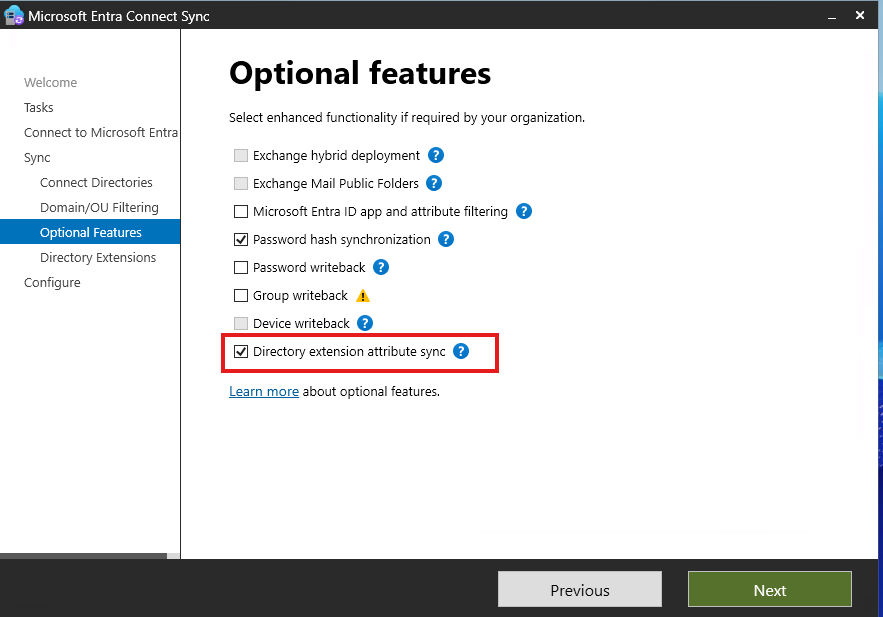
- Go to the Optional features page, and enable Directory extension attribute sync.
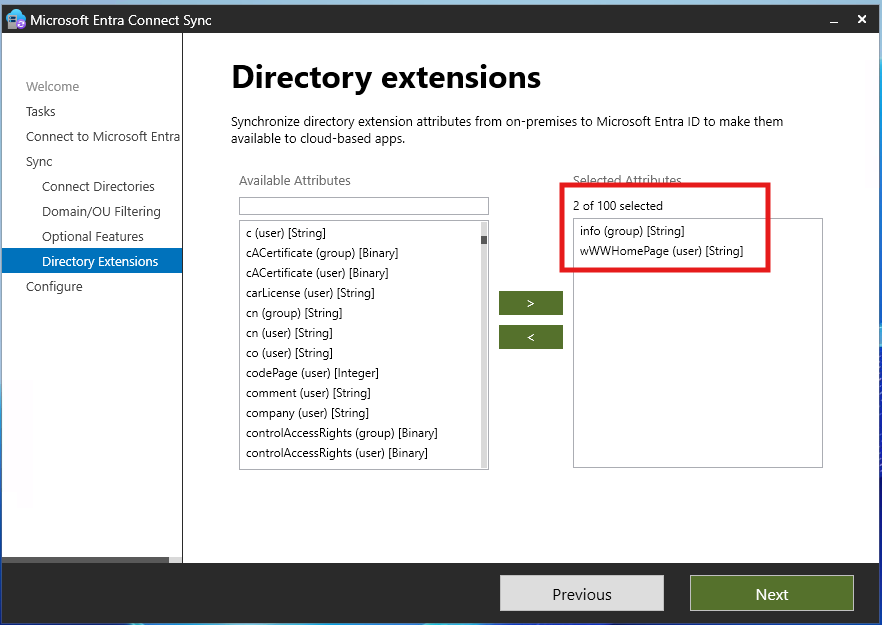
- In the next page, choose the Active Directory attributes you want to sync to Entra ID. Only user or group attributes are currently supported.
- Continue by saving the configuration and starting the synchronization process.
The error
At this point, the following error may appear once the configuration is complete:
Unable to configure Directory Extensions, please consult with the event log for additional information.
Following the message’s suggestion, you might check the Event Viewer on the Entra Connect Sync server, only to find that no useful events were logged for this failure. As a result of this error, the new configuration for schema extensions is not applied.
This leaves you in a frustrating situation: Microsoft advises reviewing the Event Viewer, but no relevant events are actually shown. Documentation on this issue is also very limited online, both in official resources and in blog posts, so the only real option is to investigate the root cause ourselves.
But, to effectively investigate the issue, it is important to first understand what really happens when you enable Directory extension attributes sync in Entra Connect Sync.
What happens behind the scenes
If the configuration change is successful in Entra Connect Sync wizard, a new application is registered in your tenant. This application is called Tenant Schema Extension App.
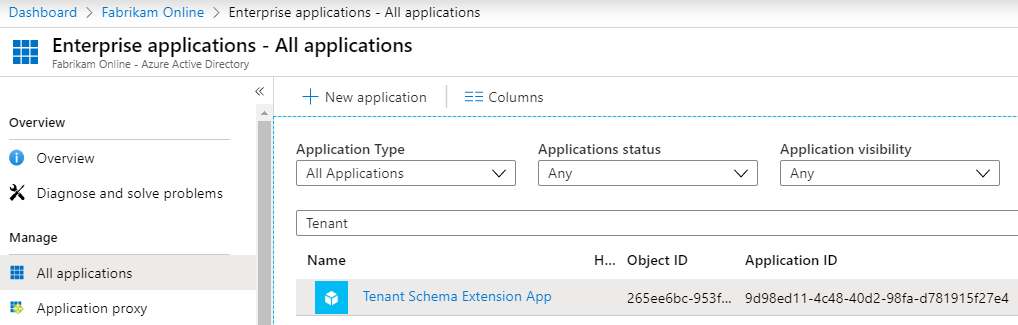 This application is created automatically when you save the configuration in the Entra Connect Sync wizard, and it is created using the same user account you used to sign in to the wizard before making the changes. Once created, this app cannot be deleted.
Currently, to view extended attributes synced from Entra Connect, you need to use PowerShell. These attributes are in the following format: extension_{ApplicationId}_<attributeName>, where ApplicationId is the application id of the Tenant Schema Extension App.
The fix
Now that we know what the Entra Connect Sync wizard actually does behind the scenes, and that all operations are performed with the user we used to log into the wizard, we can start by looking at the audit logs in Entra ID.
In my case, one log entry caught my attention:
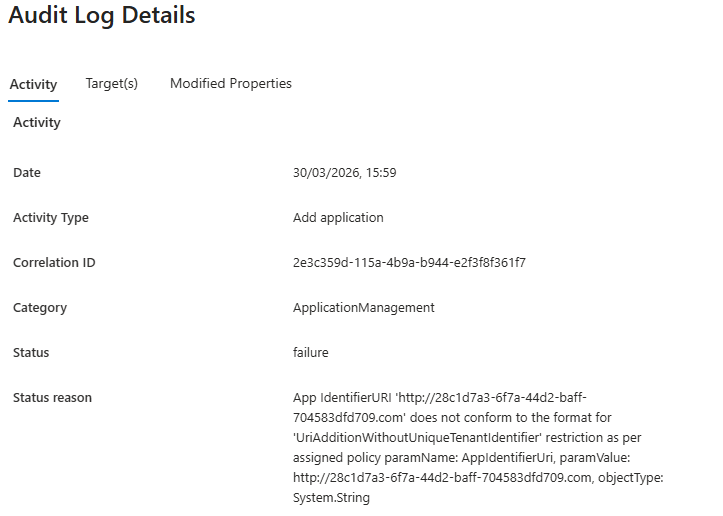 This log clearly states that there’s something blocking the creation of a new application in our tenant, because it does not conform to the format for
 UriAdditionWithoutUniqueAppIdentifier.
At this point the solution is pretty simple:
- In the Entra portal, go to Enterprise Apps, and the select Application policies.
- If you got the error displayed above, you probably have the
Block identifier URIs without unique tenant identifierspolicy set to On. - Open the policy and under Applies to, select All applications with exclusions.
- Click on Excluded callers, and add the user you used to log into the Entra Connect Sync wizard.
- Save the policy.
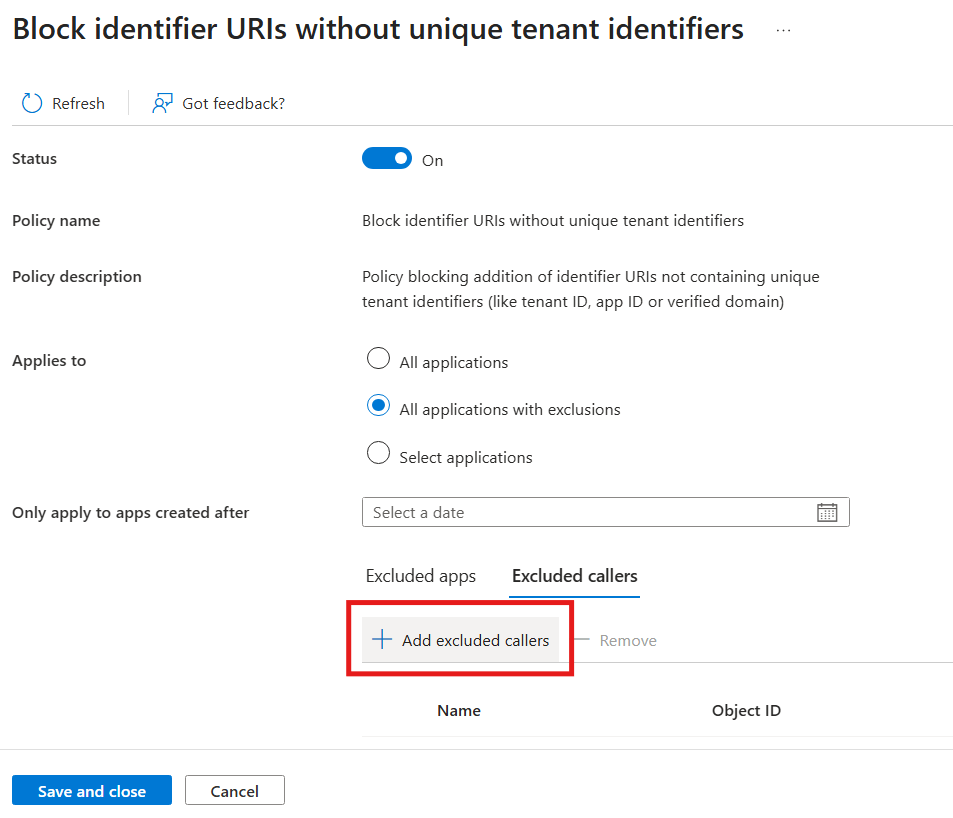 Now retry the steps described under Configure Entra Connect Sync for Directory Extensions section.
Note
To make this change, your user needs the Atrribute Definition Administrator and Attribute Assignment Administrator roles.
View synced Directory Extensions for a user
As previously said, to view directory extension attributes synced with Entra Connect from on-premises, you need to use PowerShell.
Here is a quick example on how to do it:
Connect-MgGraph -Scopes User.Read.All

$user = Get-MgBetaUser -ConsistencyLevel eventual -Filter "UserPrincipalName eq '<your_user_upn>'" -All

$user.AdditionalProperties.GetEnumerator() | Where-Object { $_.Key -like "extension_*" } | Select-Object Key, Value
Note
The Microsoft.Graph.Beta.Users module is required to retrieve the values in the AdditionalProperties property for Entra ID users, since it contains the extension attributes and other extra fields. The Microsoft.Graph.Users module does not return any values for AdditionalProperties.
Conclusion
In the end, this issue turned out to be much less mysterious than it first appeared, but finding the root cause still required a bit of manual investigation. The key takeaway is that Entra Connect Sync can fail to configure directory extensions without giving you much useful guidance in the Event Viewer, so knowing where to look and why can save a lot of time.
Hopefully, this walkthrough helps you get past the error faster and avoid the same frustration if you run into it yourself.