Exchange Online auto-expanding archiving deep dive: how it really works behind the scenes
- Davide Cenedese
- Microsoft 365 , Exchange online
- August 31, 2026
Table of Contents
Recently, I found myself digging into the inner workings of Exchange Online auto-expanding archiving. Although there is plenty of documentation explaining how to enable the feature, I was surprised by how little information exists about what happens behind the scenes once an archive starts to grow. Questions such as when the archive expands, what triggers the expansion process, how additional storage is allocated, and how administrators can determine the actual archive size are not always easy to answer.
After spending time investigating the feature, reviewing mailbox behavior, and correlating the available information, I realized there wasn’t a single resource that clearly explained the complete picture. This article is the result of that research.
Overview
In this article, we’ll take a technical deep dive into Exchange Online auto-expanding archiving. We’ll explore the conditions that trigger archive growth, how Exchange Online provisions additional archive storage behind the scenes, how expanded archives are represented within Exchange Online, and the techniques administrators can use to determine whether an archive has expanded and by how much. We’ll also examine a practical method for accelerating the provisioning of additional archive storage when growth is required, helping administrators better understand and manage large archive deployments.
What is Exchange Online auto-expanding archiving?
For every Exchange Online mailbox, administrators can optionally enable an Online Archive, which provides a secondary mailbox dedicated to long-term email storage. This archive mailbox is separate from the user’s primary mailbox and includes an initial quota of 100 GB. Additionally, a 10 GB warning threshold is implemented for each archive, resulting in a total capacity of 110 GB. Users can access their archive seamlessly from Outlook, Outlook on the web, and other supported clients, just as they would any other mailbox folder.
When the archive mailbox approaches its storage limit, Exchange Online auto-expanding archiving can automatically provision additional archive capacity behind the scenes. Rather than increasing the size of the original archive mailbox, Exchange Online creates additional archive storage and transparently distributes archived content across it. From the user’s perspective, the archive continues to appear as a single, unified archive mailbox, while Exchange Online manages the underlying storage architecture automatically.
Through this mechanism, the available archive capacity can grow well beyond the initial 100 GB, reaching approximately 1.5 TB of total archive storage for a single mailbox, depending on service limits and supported scenarios. This allows organizations to support long-term retention requirements without requiring administrators to manually manage archive growth.
For a complete overview of the feature, including licensing requirements, supported scenarios, and official limitations, consult the Microsoft Learn documentation here Learn about archive mailboxes | Microsoft Learn and here Learn about auto-expanding archiving | Microsoft Learn.
The challenge with archive expansion
As mentioned earlier, Exchange Online triggers archive expansion when the archive is almost full. Specifically, when it reaches approximately 91% of its available capacity. This means that expansion should begin once the archive contains roughly 91 GB of data.
While this sounds straightforward, what actually happens next is far more interesting than simply increasing the archive quota.
Archive Expansion Is Not Immediate
A common misconception is that Exchange Online expands an archive immediately after the 91% threshold is reached. In reality, archive expansion is an asynchronous process. Reaching the threshold simply signals Exchange Online that additional archive capacity is required. The actual provisioning of new archive storage occurs later, as a background service operation, and can take anywhere from hours to days depending on the circumstances.
The process responsible for monitoring mailbox and archive mailbox state in Exchange Online, the Managed Folder Assistant, is also responsible for triggering archive expansion when an online archive approaches its capacity limit. However, there’s an important detail to keep in mind: Managed Folder Assistant does not continuously evaluate mailboxes. Instead, it processes each mailbox and archive mailbox on a work cycle that typically occurs approximately every 7 days.
However, you can force the Managed Folder Assistant to run on a specific mailbox using the following cmdlet:
# After you have run Connect-ExchangeOnline
Start-ManagedFolderAssistant -Identity <UserPrincipalName>
Or, even better, force the Managed Folder Assistant to run on the archive mailbox for a specified user:
- Get the GUID of the archive mailbox for the user:
Get-Mailbox <UserPrincipalName> | Select -ExpandProperty MailboxLocations
The output will be something like this:

The highlighted GUID is the GUID of the online archive for the specified mailbox.
Run the Managed Folder Assistant on the archive mailbox:
Start-ManagedFolderAssistant -Identity <MainArchive-Guid>
At this point, the Managed Folder Assistant will evaluate the archive within a few hours.
Archive expansion capacity is not fixed
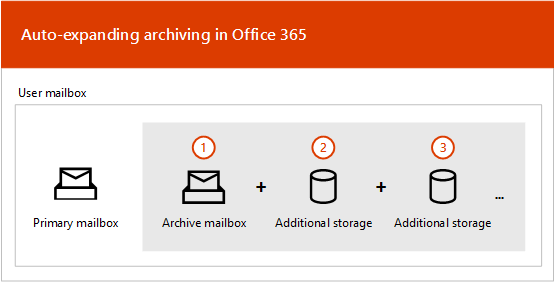
When an archive requires additional capacity, Exchange Online provisions one or more auxiliary archive mailboxes that act as additional storage locations for archived content. As a result, what appears in the Exchange Admin Center as a single auto-expanding archive is actually a collection of archive mailboxes working together behind the scenes.
More specifically, an auto-expanding archive consists of a MainArchive mailbox and, as the archive grows, one or more AuxArchive mailboxes. Exchange Online automatically provisions these auxiliary archives as additional storage is needed and distributes archived content across them. The number of auxiliary archives associated with a mailbox therefore depends on the total volume of archived data that must be stored.
The following diagram illustrates this architecture and shows how a single online archive can be backed by multiple archive mailboxes behind the scenes.
This cycle repeats until the mailbox reaches the maximum supported archive capacity of approximately 1.5 TB.
The following cmdlet can be used to identify the MainArchive and any AuxArchive mailboxes that have been provisioned for a user:
Get-Mailbox <UserPrincipalName> | Select -ExpandProperty MailboxLocations
Here is a sample output for the above command:

When an auxiliary archive mailbox is provisioned, it receives the same quota configuration as the MainArchive mailbox: 100 GB of archive storage plus a 10 GB warning threshold, for a total capacity of 110 GB.
At first glance, this might suggest that every new auxiliary archive increases the total archive capacity by another 110 GB. However, this is not what happens in practice. Exchange Online implements an internal mechanism that redistributes data between the MainArchive and the auxiliary archive mailboxes after expansion occurs. As a result, the effective increase in available archive capacity is not equal to the full quota of the newly provisioned auxiliary archive mailbox.
This behavior leads to confusion when administrators attempt to calculate the total archive capacity of a mailbox based solely on the number of auxiliary archives that have been provisioned. To understand why, we first need to examine how Exchange Online moves and reorganizes data between archive mailboxes during the expansion process.
Behind the scenes: archive data rebalancing
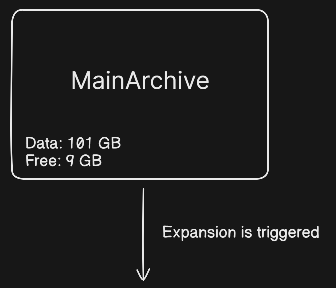
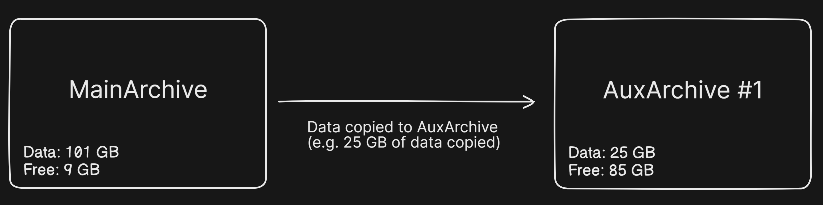
To better understand what happens during archive expansion, let’s consider a simple example. Assume a user has an online archive containing 91 GB of data, causing Exchange Online to trigger the provisioning of a new auxiliary archive mailbox.
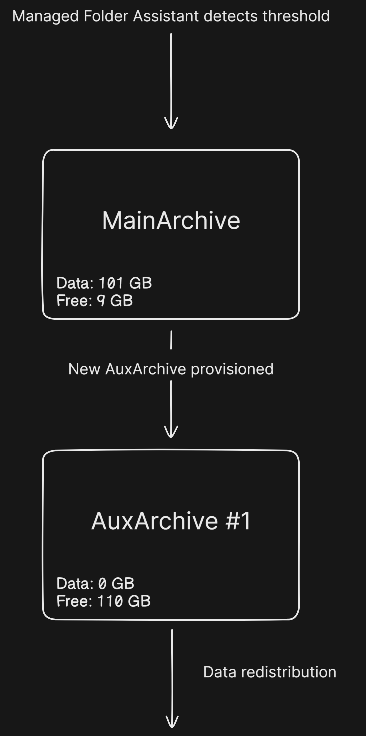
Once the auxiliary archive has been created, it might seem reasonable to expect the total archive capacity to increase from 110 GB to 220 GB. After all, both the MainArchive and the newly provisioned AuxArchive have a quota of 110 GB including the warning threshold.
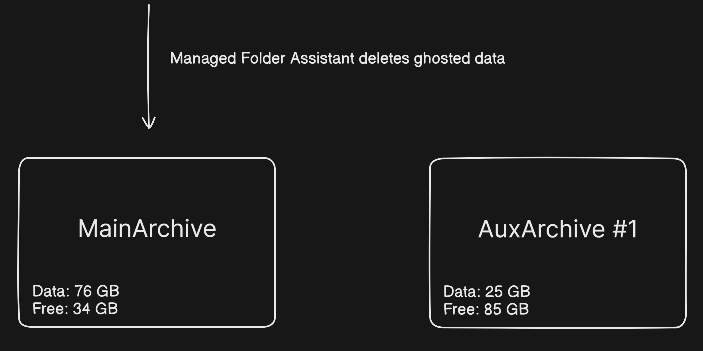
However, this is not how Exchange Online manages archive growth. Instead of simply adding a second archive mailbox and continuing to fill it independently, Exchange Online redistributes archived data between the available archive mailboxes. In practice, entire folders can be relocated from the MainArchive to the AuxArchive as part of an internal rebalancing process that is transparent to both users and administrators.
An important detail is that newly archived data is generally written to the MainArchive mailbox, rather than directly to an AuxArchive mailbox. As a result, Exchange Online must periodically free up space in the MainArchive by moving existing content to auxiliary archives. The notable exception to this behavior will be discussed later in this article.
Because of this mechanism, the effective capacity gained after an expansion depends on how much data Exchange Online can redistribute from the MainArchive to the available AuxArchive mailboxes. This is also why the total available archive capacity cannot be calculated simply by multiplying the number of archive mailboxes by their individual quotas.
The process then repeats itself as the archive continues to grow. Once the MainArchive again reaches approximately 91% of its available quota, Exchange Online typically provisions another auxiliary archive mailbox. Archived content is subsequently redistributed to the newly created AuxArchive, freeing space in the MainArchive and allowing new data to continue flowing into it. As users archive additional content over time, this cycle of expansion, data redistribution, and MainArchive space reclamation is repeated until the mailbox reaches the maximum supported auto-expanding archive capacity.
The following diagrams illustrate the archive expansion workflow and show how Exchange Online provisions auxiliary archive mailboxes and redistributes data as the archive continues to grow.
STEP 1 - Initial state
STEP 2 - AuxArchive provisioned
STEP 3 - Data redistribution
STEP 4 - Ghosted data deletion
PowerShell: analyze archive data rebalancing
The behavior illustrated in the previous diagram can be observed directly in Exchange Online using PowerShell.
# After you have run Connect-ExchangeOnline
$mailbox = Get-Mailbox -Filter 'userprincipalname -eq "JohnC@cloudnotes.blog"'

# Show the current size of each archive for the specified user
$locations = $mailbox.MailboxLocations
$found = $false

foreach ($location in $locations) {
	$parts = $location -split ';'
	if ($parts.Length -ge 3 -and ($parts[2] -eq 'MainArchive' -or $parts[2] -eq 'AuxArchive')) {
		$found = $true
		$guid = $parts[1]
		$stats = Get-EXOMailboxStatistics -Identity $guid

		Write-Output "Mailbox: $($mailbox.PrimarySmtpAddress), ArchiveType: $($parts[2]), ArchiveGuid: $guid, TotalItemSize: $($stats.TotalItemSize), ItemCount: $($stats.ItemCount)"
	}
}
if (-not $found) {
	Write-Warning "No archive location found for $($mailbox.PrimarySmtpAddress)"
}
From the output you can see that the user JohnC@cloudnotes.blog already has four AuxArchives in addition to its MainArchive. This means that archive expansion has already been triggered multiple times for the user.
 Once we have the list of MailboxLocations and their corresponding GUIDs for the mailbox, we can retrieve the copy job history.
Get-MailboxFolderStatistics <MainArchiveGuid> | ? {$_.LastMovedTimeStamp -and $_.FolderSize -gt 0} | Select FolderSize,LastMovedTimeStamp,ContentMailboxGuid | Sort-Object LastMovedTimeStamp -Desc
This information provides evidence of the data redistribution process performed by the Managed Folder Assistant, showing when content has been moved from the MainArchive to one of the auxiliary archive mailboxes. In the example below, the ContentMailboxGuid identifies the target AuxArchive that received the data.
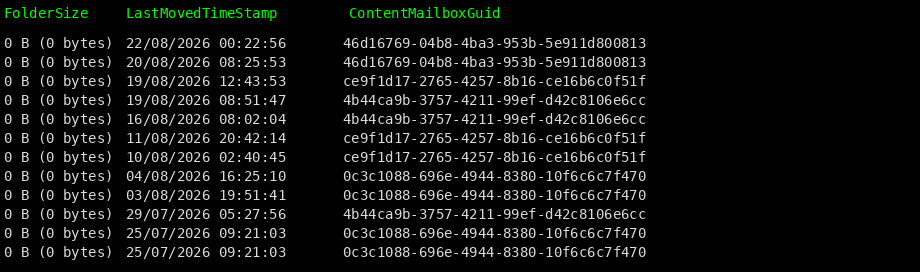 An interesting detail is that the reported FolderSize is 0 bytes. This indicates that the content has already been successfully relocated to the auxiliary archive mailbox and subsequently removed from the MainArchive, leaving behind only a historical record of the copy operation.
If the cleanup phase has not yet completed, the FolderSize value will instead report the size of the remaining ghosted data that still exists in the MainArchive and is awaiting purging. In other words, a non-zero value indicates that the content has already been copied to the target AuxArchive, but Exchange Online has not yet reclaimed the corresponding space from the MainArchive. Once the purge operation completes, the FolderSize drops to 0 bytes, signaling that the relocation process has fully finished.
This is one of the clearest indicators that Exchange Online has redistributed archive data as part of the auto-expanding archive lifecycle. It also explains why the reported archive size in Exchange Online Admin Center can sometimes spike and then decrease hours or days later without any content being deleted by users. Until ghosted data is purged from the MainArchive, the same content may temporarily be accounted for in multiple archive locations. Once the cleanup completes, the reported size drops accordingly.
Not all data flows through the MainArchive
As a general rule, new content archived to an Exchange Online archive mailbox is first written to the MainArchive. Later, when Exchange Online needs to reclaim space as part of the auto-expanding archive process, the Managed Folder Assistant moves data from the MainArchive to one or more auxiliary archive mailboxes.
There is, however, an important exception to this behavior.
Based on observed behavior, the evidence suggests that Exchange Online tracks the location of archived content at the folder level. Although content from a folder can be distributed across multiple archive mailboxes during expansion, Exchange Online maintains an internal pointer that identifies the archive mailbox currently associated with that folder. Initially, this pointer references the MainArchive mailbox GUID, since all folders are created there.
During archive expansion, as data is relocated from the MainArchive to an AuxArchive, Exchange Online may update the folder’s pointer to reference the GUID of the target auxiliary archive mailbox instead. When this happens, subsequent writes to that specific folder are no longer directed to the MainArchive. Instead, new content is written directly to the AuxArchive that owns the folder.
As a result, while the MainArchive remains the primary ingestion point for most archived content, folders whose ownership has been transferred to an AuxArchive can continue receiving new data directly in that auxiliary archive mailbox. This behavior plays an important role in how Exchange Online scales archive storage while minimizing the need for repeated data relocation operations.
We can analyze this behavior with PowerShell for our user JohnC@cloudnotes.blog.
Get-MailboxFolderStatistics <MainArchiveGuid> | Select Name,FolderPath,ContentMailboxGuid
The output shows that for the MainArchive mailbox (GUID 8e56429b-5518-43cb-bc1f-81ac7f6799b3) for the user JohnC@cloudnotes.blog, some folders like Inbox, actually point to the GUID of an AuxArchive mailbox.
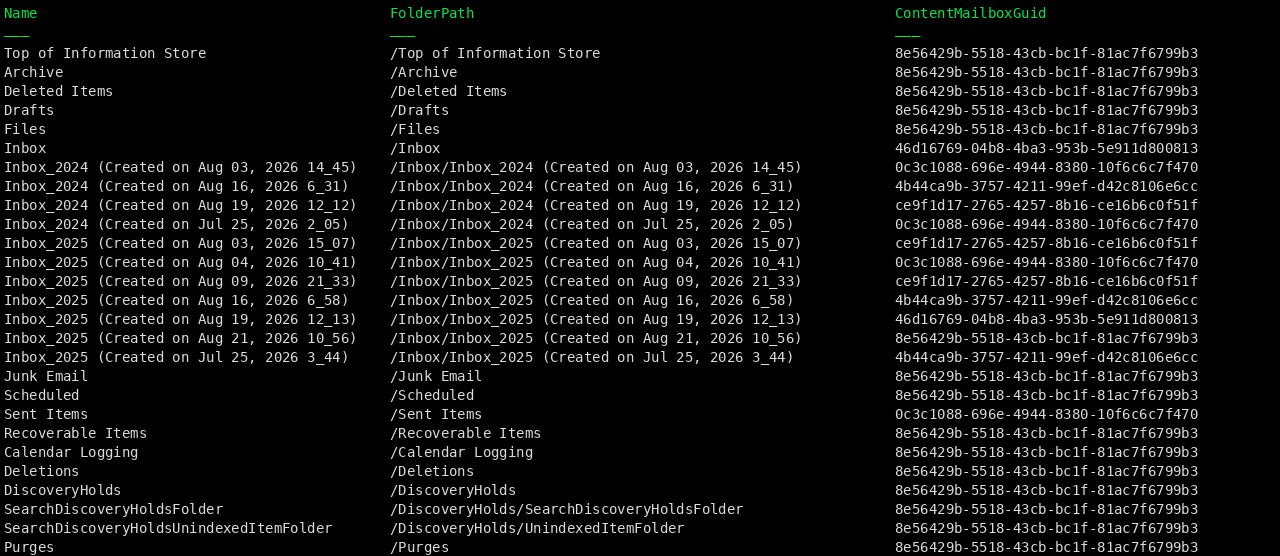 Now that we’ve established that the Inbox folder is associated with the AuxArchive identified by GUID
 46d16769-04b8-4ba3-953b-5e911d800813, we can perform a simple test by archiving additional content into the user’s Inbox folder and observing where the new data is stored.
As we’ll see, the results confirm that once a folder’s ownership has been transferred to an AuxArchive, subsequent writes to that folder are directed to the associated AuxArchive rather than the MainArchive.
Before archiving additional data to Inbox:
After archiving additional data to Inbox:
 As you can see from the image, the AuxArchive with GUID
 46d16769-04b8-4ba3-953b-5e911d800813, the owner of the Inbox folder, has increased in size, while the MainArchive remained at 35.4 GB.
AuxArchives can fill up too
Until now, we’ve focused on the MainArchive, since it is typically the entry point for archived data and the archive mailbox that administrators most commonly monitor. However, auxiliary archive mailboxes are not exempt from growth.
As explained in the previous section, once a folder’s ownership is transferred to an AuxArchive, subsequent writes to that folder are directed to the AuxArchive itself rather than the MainArchive. Over time, this means that an AuxArchive can continue accumulating new content and may eventually approach its own quota limits.
When this happens, Exchange Online follows a process similar to the one already described for MainArchive expansion. Once the expansion threshold is reached, the Managed Folder Assistant can initiate the provisioning of an additional auxiliary archive mailbox. Exchange Online then redistributes archived content across available archive locations to free space where needed.
The important takeaway is that auto-expanding archiving does not operate as a simple hierarchy where only the MainArchive grows. Instead, Exchange Online manages a collection of archive mailbox locations and continuously rebalances data between them as capacity requirements evolve.
Let’s observe this behavior in practice for the mailbox JohnC@cloudnotes.blog using PowerShell.
As shown below, the auxiliary archive mailbox identified by 46d16769-04b8-4ba3-953b-5e911d800813 has now reached its maximum capacity of approximately 110 GB. At this point, no additional content can be stored in that archive mailbox.
 When the Managed Folder Assistant next processes the mailbox (or we manually force it to process the AuxArchive using the PowerShell cmdlet
 Start-ManagedFolderAssistant -Identity 46d16769-04b8-4ba3-953b-5e911d800813), Exchange Online will detect that the expansion threshold has been reached and provision a new AuxArchive mailbox. Once the new archive mailbox becomes available, Exchange Online will redistribute archived content from the existing AuxArchive to the newly provisioned one, freeing space and allowing archive growth to continue.
In this output image you can see that an additional AuxArchive with GUID 7a52c0de-7fb5-4b78-a08a-73d66c3a92e1 has been provisioned, and that some data has already been copied.
 The last piece of the puzzle is confirming that the 19.01 GB of data in the new AuxArchive was copied from
 46d16769-04b8-4ba3-953b-5e911d800813 during the archive expansion process.
Get-MailboxFolderStatistics "46d16769-04b8-4ba3-953b-5e911d800813" | ? {$_.LastMovedTimeStamp -and $_.FolderSize -gt 0} | Select FolderSize,LastMovedTimeStamp,ContentMailboxGuid | Sort-Object LastMovedTimeStamp -Desc
 The output confirms that the AuxArchive identified by
 46d16769-04b8-4ba3-953b-5e911d800813 contains two new copy jobs whose destination is the newly provisioned AuxArchive. However, the relocation process has not yet fully completed. As shown by the FolderSize values, the copied content is still present in the source AuxArchive and has not yet been purged.
We can also verify that the amount of redistributed data matches the size of the new AuxArchive. The two copy jobs account for approximately 19.01 GB of data (7.177 GB + 11.84 GB), which corresponds exactly to the 19.01 GB currently stored in the newly provisioned AuxArchive. Once the ghosted data cleanup process completes, the FolderSize values will gradually decrease until they reach 0 bytes, indicating that the data has been fully removed from the source archive mailbox.
We can see that, as the process progresses, the first copy job has completed its cleanup phase and the corresponding ghosted data has been fully removed from the source archive, resulting in a FolderSize of 0 bytes. The second copy job, however, is still awaiting cleanup and therefore continues to report the remaining ghosted data.
Interestingly, before the redistribution process has fully completed, Exchange Online has already initiated another expansion cycle, copying additional content to a newly provisioned AuxArchive. This demonstrates that archive expansion, data redistribution, and ghosted data cleanup can occur concurrently across multiple archive mailboxes as Exchange Online continues to optimize archive capacity.

Conclusion
Exchange Online auto-expanding archiving is far more sophisticated than a simple archive quota increase. Behind what appears to be a single archive mailbox, Exchange Online continuously provisions auxiliary archive mailboxes, redistributes data between them, tracks folder ownership, and orchestrates copy and cleanup operations through the Managed Folder Assistant.
Understanding these internal mechanisms helps explain behaviors that often puzzle administrators and enables them to better plan critical operations, such as large-scale email imports directly into online archives, where knowing how and when Exchange Online provisions additional archive capacity can significantly impact project timelines.